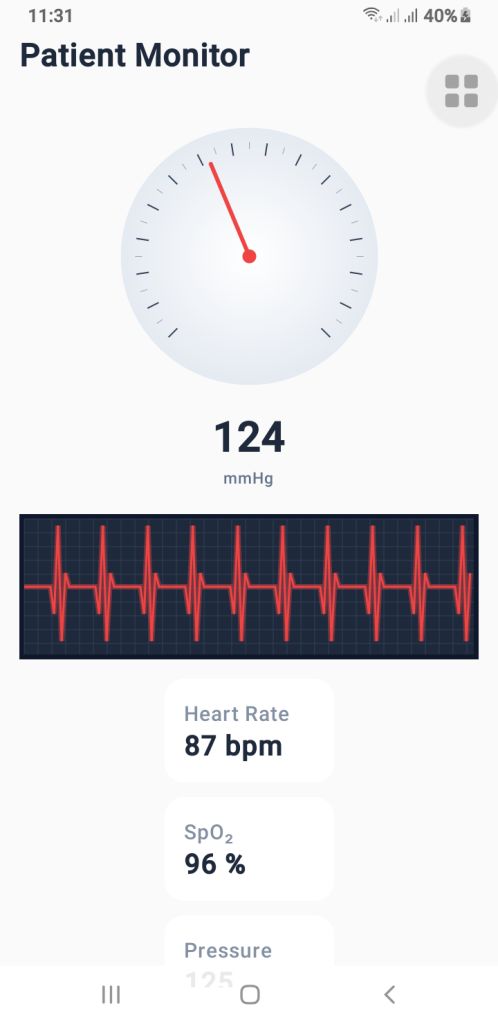
Modern health applications—whether you’re building a blood pressure app Android, an ECG app Android, or a heart rate monitor Android—require interfaces that are clean, smooth, and capable of updating in real time. With Jetpack Compose, Android developers can design advanced animated dashboards using only a few composable functions.
In this guide, we’ll walk through a complete real-time vital monitoring UI built entirely with Canvas, animations, and Jetpack Compose.
The final setup includes:
- A pressure gauge (mmHg) for blood pressure visualization
- A real-time ECG waveform renderer
- A vital simulator that generates dynamic heartbeat, SpO₂, and pressure values
If you’re creating a health monitoring interface, these components provide a great foundation.
1. The Blood Pressure Gauge’s (PressureGauge) user interface
The PressureGauge composable makes a round gauge that is fully animated and looks like the dials on professional sphygmomanometers used in clinics.
Important parts of the gauge
- The needle moves smoothly.
- It ticks every 10 mmHg.
- Major ticks every 20 mmHg.
- A soft radial gradient background.
- A 270° sweep (–135° to +135°), just like a medical pressure meter.
The needle moves smoothly toward the new pressure value when you use animateFloatAsState(). This makes it feel like a real machine, which is great for the UI of an Android blood pressure app.
PressureGauge Code
@Composable
fun PressureGauge(
    pressure: Float,
    maxPressure: Float = 300f,
    modifier: Modifier = Modifier
) {
    val animatedPressure by animateFloatAsState(
        targetValue = pressure,
        animationSpec = tween(800, easing = LinearOutSlowInEasing)
    )

    val size = 260.dp
    val center = size / 2

    Box(
        modifier = modifier
            .size(size)
            .padding(12.dp),
        contentAlignment = Alignment.Center
    ) {
        Canvas(modifier = Modifier.fillMaxSize()) {

            val w = this.size.width
            val h = this.size.height
            val cx = w / 2
            val cy = h / 2

            val rotation = -135f + (animatedPressure.coerceAtMost(maxPressure) / maxPressure) * 270f

            // BACKGROUND GRADIENT
            drawCircle(
                brush = Brush.radialGradient(
                    colors = listOf(Color.White, Color(0xFFE2E8F0))
                ),
                radius = w * 0.45f,
                center = Offset(cx, cy)
            )

            // TICKS
            for (i in 0..maxPressure.toInt() step 10) {
                val angle = -135f + (i / maxPressure) * 270f
                val rad = Math.toRadians((angle - 90).toDouble())

                val major = i % 20 == 0
                val length = if (major) 18f else 10f
                val width = if (major) 2f else 1f

                val rOuter = w * 0.4f
                val rInner = rOuter - length

                val x1 = cx + rOuter * cos(rad).toFloat()
                val y1 = cy + rOuter * sin(rad).toFloat()
                val x2 = cx + rInner * cos(rad).toFloat()
                val y2 = cy + rInner * sin(rad).toFloat()

                drawLine(
                    color = if (major) Color(0xFF334155) else Color(0xFF94A3B8),
                    start = Offset(x1, y1), end = Offset(x2, y2),
                    strokeWidth = width
                )
            }

            // NEEDLE
            rotate(rotation, pivot = Offset(cx, cy)) {
                drawLine(
                    start = Offset(cx, cy),
                    end = Offset(cx, cy - w * 0.35f),
                    color = Color(0xFFEF4444),
                    strokeWidth = 6f,
                    cap = StrokeCap.Round
                )
                drawCircle(
                    color = Color(0xFFEF4444),
                    center = Offset(cx, cy),
                    radius = 10f
                )
            }
        }
    }

    Column(horizontalAlignment = Alignment.CenterHorizontally) {
        Text(
            text = animatedPressure.toInt().toString(),
            fontSize = 34.sp,
            fontWeight = FontWeight.Bold,
            color = Color(0xFF1E293B)
        )
        Text(
            text = "mmHg",
            color = Color(0xFF64748B),
            fontSize = 12.sp
        )
    }
}
2. PulseECG – A real-time renderer for ECG waveforms
The waveform is the most important visual part of an ECG app for Android. The PulseECG composable makes it look like an ECG trace is moving by constantly moving a list of points.
How it works
Keeps a list of 120 points that keeps changing
Changes values based on two conditions:
active: ECG is working
beating: heartbeats
Makes a dark grid that looks like a medical one
Draws a glowing red ECG path to make it look real
It looks a lot like real ECG monitor output and can easily take real medical data.
PulseECG Code
@Composable
fun PulseECG(
    active: Boolean,
    beating: Boolean,
    modifier: Modifier = Modifier
) {
    var points by remember { mutableStateOf(List(120) { 50f }) }
    var tick by remember { mutableStateOf(0) }

    LaunchedEffect(active, beating) {
        while (true) {
            delay(40)

            val new = points.toMutableList()
            new.removeAt(0)

            val updated = when {
                !active -> 50f
                !beating -> 50f + (Math.random().toFloat() - 0.5f) * 8f
                else -> when (tick % 12) {
                    0 -> 50f
                    1 -> 30f
                    2 -> 95f
                    3 -> 10f
                    4 -> 60f
                    else -> 50f
                }
            }
            new.add(updated)
            points = new

            if (beating) tick++
        }
    }

    Canvas(
        modifier = modifier
            .fillMaxWidth()
            .height(110.dp)
            .background(Color(0xFF0F172A))
            .padding(4.dp)
    ) {
        val w = size.width
        val h = size.height

        // GRID
        drawRect(Color(0xFF1E293B))
        for (x in 0 until w.toInt() step 20)
            drawLine(Color(0xFF334155), Offset(x.toFloat(), 0f), Offset(x.toFloat(), h))
        for (y in 0 until h.toInt() step 20)
            drawLine(Color(0xFF334155), Offset(0f, y.toFloat()), Offset(w, y.toFloat()))

        // ECG line
        val path = Path()
        points.forEachIndexed { i, v ->
            val x = (i / points.size.toFloat()) * w
            val y = h - (v / 100f) * h
            if (i == 0) path.moveTo(x, y) else path.lineTo(x, y)
        }

        // Glow
        drawPath(
            path = path,
            color = Color(0xFFEF4444).copy(alpha = 0.4f),
            style = Stroke(width = 8f)
        )

        drawPath(
            path = path,
            color = Color(0xFFEF4444),
            style = Stroke(width = 3f)
        )

    }
}
3. VitalSimulator – Generating Real-Time Readings
For demo purposes—or previewing UI—you can use VitalSimulator, a small composable that generates random:
- Blood pressure
- Heart rate (BPM)
- SpO₂ oxygen level
This is especially useful while building a heart rate monitor Android interface.
VitalSimulator Code
@Composable
fun VitalSimulator(): Triple<Float, Float, Float> {
    var pressure by remember { mutableStateOf(120f) }
    var bpm by remember { mutableStateOf(75f) }
    var spo2 by remember { mutableStateOf(97f) }

    LaunchedEffect(Unit) {
        while (true) {
            delay(1500)
            pressure = (110..135).random().toFloat()
            bpm = (72..90).random().toFloat()
            spo2 = (96..99).random().toFloat()
        }
    }

    return Triple(pressure, bpm, spo2)
}
Putting It All Together
By combining these composables, you can build a polished dashboard showing:
- Animated blood pressure
- Real-time ECG waveform
- BPM and SpO₂ levels
This is an excellent base for medical-style dashboards or consumer wellness applications.
Final Thoughts
Jetpack Compose makes it possible to build real-time health monitoring dashboards with only a few clean, efficient composables. Whether you’re working on a blood pressure app Android, an ECG app Android, or a heart rate monitor Android, these components give you a professional, animated, and scalable UI foundation.