If you want to write clean, scalable, and professional Flutter code, understanding Clean Architecture is essential.In this guide, we will focus only on the core concept of Clean Architecture:
❌ No State Management
❌ No Dependency Injection
✅ Only core architecture (Domain + Data + Presentation)
🧠 What is Clean Architecture?
Clean Architecture is a design approach where an application is divided into layers to achieve:
Well-organized code
Easier maintenance and updates
Better testability
Scalability for large applications
🔑 The Golden Rule
Dependencies always point inward
Inner layers are independent and do not know about outer layers
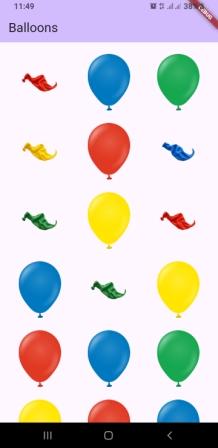
In this article, we learn an animation concept for a balloon burst animation. This may look like a simple animation, but the concept behind it is at an advanced level. By using this, you can create your own animations for celebrations, birthdays, and order-completed pages in shopping apps, etc.
The main purpose of this article is to provide the source code for this balloon burst animation so that you can use it in your own application.
Dart Files for the Balloon Burst Animation Widget
The source code includes the following files:
balloon.dart
balloon_item.dart
particle.dart
particle_controller.dart
particle_painter.dart
balloon_burst_widget.dart
How to Use the Balloon Burst Animation Widget in Your App
Copy all the files mentioned above from the source code and paste them into your own project. Then use the widget class “BalloonBurstWidget” from the balloon_burst_widget.dart file. After that, pass a list of your own images to this widget.
For testing purposes, you can also copy all the images from the source code assets folder.
Want more ready-to-use source code for your projects? Explore our Source Codes page, where you’ll find examples from various programming languages and frameworks that can help you bring your ideas to life.
Loading indicators are an important part of making a mobile experience look and feel smooth and professional. A lot of developers use built-in progress bars or spinners, but custom animations can make your app look different, help with branding, and make it feel like it’s flowing.
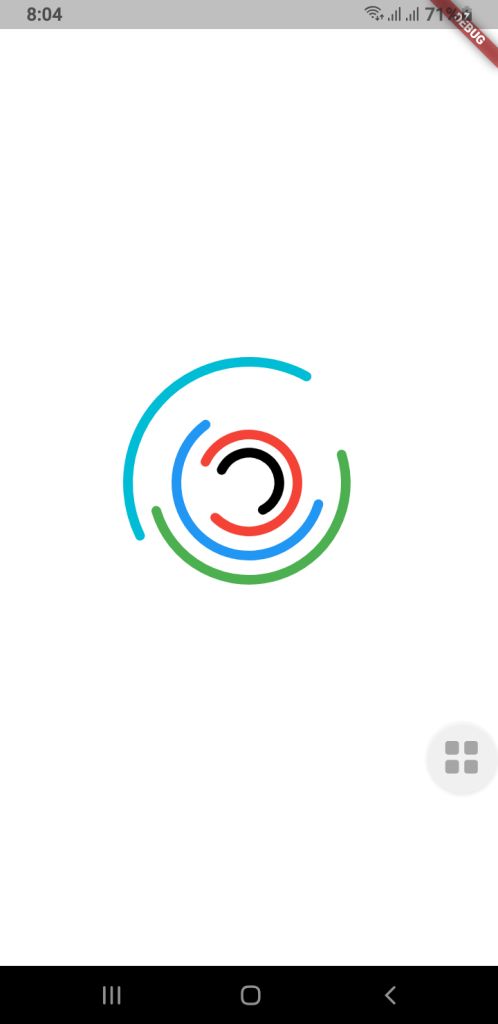
This guide will show you how to use Jetpack Compose (for Android) and Flutter to make a more complex custom loading animation for mobile apps. The goal is to make a fun-to-watch multi-ring spinner animation that spins in different directions, at different speeds, and with arcs of different shapes. Your UI will look fresh and new with this.
⭐ Why It’s Important to Have a Custom Loading Animation
A good loading animation will give you
More interaction with users
Different looks for each brand
There are no issues when you switch screens.
It feels like a premium app.
People believe they don’t have to wait as long.
You can make complicated animated parts with very little code using Jetpack Compose and Flutter, two modern UI frameworks.
Jetpack Compose for Android lets you make your own loading animation.
Developers can make UI in a declarative way with Jetpack Compose and use powerful APIs to add animations. We want to make a spinner with a lot of rings that are stacked on top of each other and spin by themselves.
1. Model for Setting Up a Ring
First, we discuss the features of each animated ring:
Radius
Color
Stroke width
Opacity
Arc length
Direction of rotation
Rotation speed
These properties allow full customization for each ring in the spinner.
RingConfig Model
data class RingConfig(
    val id: String,
    val radius: Float,
    val color: Color,
    val strokeWidth: Float,
    val opacity: Float,
    val arcLength: Float,
    val direction: Int,     // +1 or -1
    val speed: Float        // seconds per rotation
)
2. Creating the Custom Loading Animation
For smooth animations that never end, Compose has rememberInfiniteTransition.
Each ring has its own float animation that shows how it turns:
Independent rotation for each ring
Control over speed and direction
Smooth, continuous animation
3. Drawing on a Canvas
There are dashed arcs and a rotating effect on the rings drawn on Canvas.
This setup allows:
Changeable radius
Stroke width that can be changed
Dividing arcs into parts
Each layer can move by itself.
These pieces work together to make a loading animation that looks great and works well with Android apps that are up to date.
Spinner Composable Function
@Composable
fun Loading(
    rings: List,
    size: Dp = 400.dp
) {
    //  All animations must be created here, NOT inside Canvas
    val transition = rememberInfiniteTransition()

    // Pre-calc animations for each ring
    val rotations = rings.map { ring ->
        transition.animateFloat(
            initialValue = 0f,
            targetValue = ring.direction * 360f,
            animationSpec = infiniteRepeatable(
                animation = tween(
                    durationMillis = (ring.speed * 1000).toInt(),
                    easing = LinearEasing
                ),
                repeatMode = RepeatMode.Restart
            )
        )
    }

    Box(
        modifier = Modifier.size(size),
    ) {
        Canvas(modifier = Modifier.fillMaxSize()) {

            val center = Offset(this.size.width / 2, this.size.height / 2)

            rings.forEachIndexed { index, ring ->
                val rotation = rotations[index].value

                val circumference = 2f * PI.toFloat() * ring.radius
                val dashArray = circumference * ring.arcLength
                val dashGap = circumference - dashArray

                rotate(rotation, pivot = center) {
                    drawCircle(
                        color = ring.color.copy(alpha = ring.opacity),
                        radius = ring.radius,
                        center = center,
                        style = Stroke(
                            width = ring.strokeWidth,
                            cap = StrokeCap.Round,
                            pathEffect = PathEffect.dashPathEffect(
                                floatArrayOf(dashArray, dashGap),
                                phase = 0f
                            )
                        )
                    )
                }
            }
        }
    }
}
How to use this Loading Composable Function
MainActivity.kt
class MainActivity : ComponentActivity() {
    override fun onCreate(savedInstanceState: Bundle?) {
        super.onCreate(savedInstanceState)
        enableEdgeToEdge()
        setContent {
            LoaderTheme {
                CustomSpinLoading()
            }
        }
    }
}

@Composable
fun CustomSpinLoading() {
    val rings = listOf(
        RingConfig(
            id = "a",
            radius = 50f,
            color = Color.Black,
            strokeWidth = 14f,
            opacity = 1f,
            arcLength = 0.6f,
            direction = -1,
            speed = 6f
        ),
        RingConfig(
            id = "b",
            radius = 80f,
            color = Color.Red,
            strokeWidth = 14f,
            opacity = 1f,
            arcLength = 0.8f,
            direction = 1,
            speed = 8f
        ),
        RingConfig(
            id = "c",
            radius = 120f,
            color = Color.Blue,
            strokeWidth = 14f,
            opacity = 0.9f,
            arcLength = 0.6f,
            direction = -1,
            speed = 9f
        ),
        RingConfig(
            id = "d",
            radius = 160f,
            color = Color.Green,
            strokeWidth = 14f,
            opacity = 0.8f,
            arcLength = 0.5f,
            direction = 1,
            speed = 9f
        ),

        RingConfig(
            id = "e",
            radius = 200f,
            color = Color.Cyan,
            strokeWidth = 14f,
            opacity = 0.8f,
            arcLength = 0.4f,
            direction = -1,
            speed = 8f
        )
    )

    Loading(rings = rings, size = 400.dp)
}
🟩 Flutter Loading Animation That You Can Change
Flutter has its own animation system that is based on controllers and custom painters, but it works in a similar way to declarative programming.
Check out the code below:
RingConfig.dart Model Class
class RingConfig {
final String id;
final double radius;
final Color color;
final double strokeWidth;
final double opacity;
final double arcLength;
final int direction; // +1 or -1
final double speed; // seconds per rotation

RingConfig({
required this.id,
required this.radius,
required this.color,
required this.strokeWidth,
required this.opacity,
required this.arcLength,
required this.direction,
required this.speed,
});
}
Drawing with CustomPainter
import 'dart:math';
import 'package:flutter/cupertino.dart';
import 'RingConfig.dart';

class LoadingPainter extends CustomPainter {
final List<RingConfig> rings;
final List<Animation<double>> rotations;

LoadingPainter(this.rings, this.rotations);

@override
void paint(Canvas canvas, Size size) {
final center = Offset(size.width / 2, size.height / 2);

for (int i = 0; i < rings.length; i++) {
final ring = rings[i];
final rotation = rotations[i].value;

final paint = Paint()
..color = ring.color.withValues()
..style = PaintingStyle.stroke
..strokeWidth = ring.strokeWidth
..strokeCap = StrokeCap.round;

final circumference = 2 * pi * ring.radius;
final dashLength = circumference * ring.arcLength;
final dashGap = circumference - dashLength;

final circlePath = Path()
..addOval(Rect.fromCircle(center: center, radius: ring.radius));

final dashedPath = _dashPath(circlePath, dashLength, dashGap);

canvas.save();
canvas.translate(center.dx, center.dy);
canvas.rotate(rotation * pi / 180);
canvas.translate(-center.dx, -center.dy);

canvas.drawPath(dashedPath, paint);

canvas.restore();
}
}

@override
bool shouldRepaint(covariant CustomPainter oldDelegate) => true;
}

Path _dashPath(Path source, double dashLength, double dashGap) {
final Path dest = Path();
double distance = 0.0;

for (final metric in source.computeMetrics()) {
while (distance < metric.length) {
final next = distance + dashLength;
dest.addPath(metric.extractPath(distance, next), Offset.zero);
distance = next + dashGap;
}
distance = 0.0;
}
return dest;
}
You can make a loading animation just for mobile apps (Jetpack Compose and Flutter), and it can be very rewarding. Both frameworks give developers everything they need to make motion graphics that are expressive without having to use animated assets or libraries from other companies.
This multi-ring spinner is a great example of:
Design of animations that can be changed
Framework-level APIs for drawing
Animation loops that go on forever and work well
Consistency between platforms
A well-designed loader can make your user interface a lot better, whether you’re making apps just for Android or for more than one platform.
Looking to build a fun and engaging spin-the-wheel app for giveaways, lucky draws, games, or random selections? This post covers a complete mini wheel spinner app built with:
✅ Android Java using Custom Views
✅ Android Jetpack Compose
✅ Cross-platform Flutter (Android, iOS, and Web)
It’s lightweight, beautifully animated, and perfect for learners and developers. Whether you’re creating a decision-maker app or adding gamification to your product — this is your go-to solution.