How to Use Jetpack Compose and Flutter to Make a Custom Loading Animation for Mobile App

Loading indicators are an important part of making a mobile experience look and feel smooth and professional. A lot of developers use built-in progress bars or spinners, but custom animations can make your app look different, help with branding, and make it feel like it’s flowing.

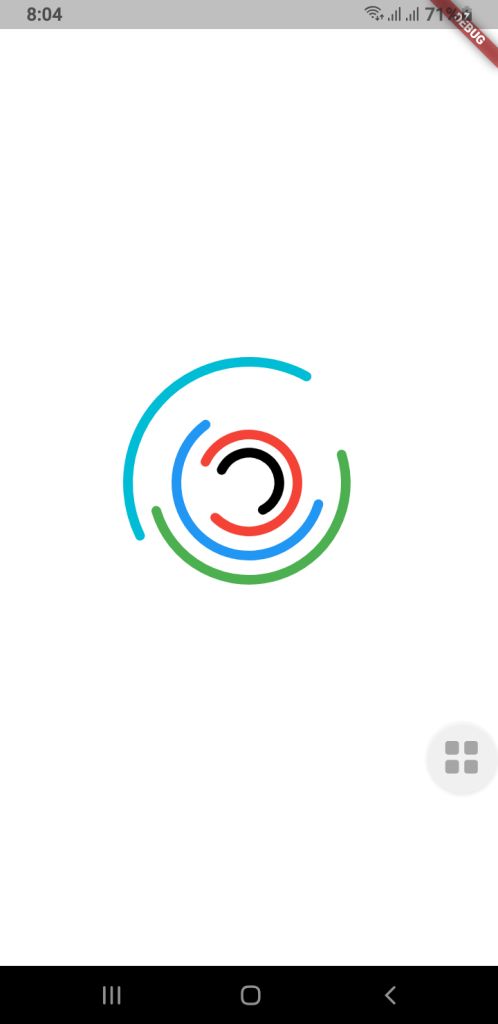
This guide will show you how to use Jetpack Compose (for Android) and Flutter to make a more complex custom loading animation for mobile apps. The goal is to make a fun-to-watch multi-ring spinner animation that spins in different directions, at different speeds, and with arcs of different shapes. Your UI will look fresh and new with this.

⭐ Why It’s Important to Have a Custom Loading Animation

A good loading animation will give you

  • More interaction with users
  • Different looks for each brand
  • There are no issues when you switch screens.
  • It feels like a premium app.

People believe they don’t have to wait as long.

You can make complicated animated parts with very little code using Jetpack Compose and Flutter, two modern UI frameworks.

Jetpack Compose for Android lets you make your own loading animation.

Developers can make UI in a declarative way with Jetpack Compose and use powerful APIs to add animations. We want to make a spinner with a lot of rings that are stacked on top of each other and spin by themselves.

1. Model for Setting Up a Ring

First, we discuss the features of each animated ring:

  • Radius

  • Color

  • Stroke width

  • Opacity

  • Arc length

  • Direction of rotation

  • Rotation speed

These properties allow full customization for each ring in the spinner.

RingConfig Model

 
data class RingConfig(
    val id: String,
    val radius: Float,
    val color: Color,
    val strokeWidth: Float,
    val opacity: Float,
    val arcLength: Float,
    val direction: Int,     // +1 or -1
    val speed: Float        // seconds per rotation
)
 
2. Creating the Custom Loading Animation

For smooth animations that never end, Compose has rememberInfiniteTransition.

Each ring has its own float animation that shows how it turns:

  • Independent rotation for each ring

  • Control over speed and direction

  • Smooth, continuous animation

3. Drawing on a Canvas

There are dashed arcs and a rotating effect on the rings drawn on Canvas.

This setup allows:

  • Changeable radius
  • Stroke width that can be changed
  • Dividing arcs into parts
  • Each layer can move by itself.

These pieces work together to make a loading animation that looks great and works well with Android apps that are up to date.

Spinner Composable Function


@Composable
fun Loading(
    rings: List,
    size: Dp = 400.dp
) {
    //  All animations must be created here, NOT inside Canvas
    val transition = rememberInfiniteTransition()

    // Pre-calc animations for each ring
    val rotations = rings.map { ring ->
        transition.animateFloat(
            initialValue = 0f,
            targetValue = ring.direction * 360f,
            animationSpec = infiniteRepeatable(
                animation = tween(
                    durationMillis = (ring.speed * 1000).toInt(),
                    easing = LinearEasing
                ),
                repeatMode = RepeatMode.Restart
            )
        )
    }

    Box(
        modifier = Modifier.size(size),
    ) {
        Canvas(modifier = Modifier.fillMaxSize()) {

            val center = Offset(this.size.width / 2, this.size.height / 2)

            rings.forEachIndexed { index, ring ->
                val rotation = rotations[index].value

                val circumference = 2f * PI.toFloat() * ring.radius
                val dashArray = circumference * ring.arcLength
                val dashGap = circumference - dashArray

                rotate(rotation, pivot = center) {
                    drawCircle(
                        color = ring.color.copy(alpha = ring.opacity),
                        radius = ring.radius,
                        center = center,
                        style = Stroke(
                            width = ring.strokeWidth,
                            cap = StrokeCap.Round,
                            pathEffect = PathEffect.dashPathEffect(
                                floatArrayOf(dashArray, dashGap),
                                phase = 0f
                            )
                        )
                    )
                }
            }
        }
    }
}


How to use this Loading Composable Function

MainActivity.kt

     
class MainActivity : ComponentActivity() {
    override fun onCreate(savedInstanceState: Bundle?) {
        super.onCreate(savedInstanceState)
        enableEdgeToEdge()
        setContent {
            LoaderTheme {
                CustomSpinLoading()
            }
        }
    }
}

@Composable
fun CustomSpinLoading() {
    val rings = listOf(
        RingConfig(
            id = "a",
            radius = 50f,
            color = Color.Black,
            strokeWidth = 14f,
            opacity = 1f,
            arcLength = 0.6f,
            direction = -1,
            speed = 6f
        ),
        RingConfig(
            id = "b",
            radius = 80f,
            color = Color.Red,
            strokeWidth = 14f,
            opacity = 1f,
            arcLength = 0.8f,
            direction = 1,
            speed = 8f
        ),
        RingConfig(
            id = "c",
            radius = 120f,
            color = Color.Blue,
            strokeWidth = 14f,
            opacity = 0.9f,
            arcLength = 0.6f,
            direction = -1,
            speed = 9f
        ),
        RingConfig(
            id = "d",
            radius = 160f,
            color = Color.Green,
            strokeWidth = 14f,
            opacity = 0.8f,
            arcLength = 0.5f,
            direction = 1,
            speed = 9f
        ),

        RingConfig(
            id = "e",
            radius = 200f,
            color = Color.Cyan,
            strokeWidth = 14f,
            opacity = 0.8f,
            arcLength = 0.4f,
            direction = -1,
            speed = 8f
        )
    )

    Loading(rings = rings, size = 400.dp)
}


🟩 Flutter Loading Animation That You Can Change

Flutter has its own animation system that is based on controllers and custom painters, but it works in a similar way to declarative programming.

Check out the code below:

RingConfig.dart Model Class

 
class RingConfig {
final String id;
final double radius;
final Color color;
final double strokeWidth;
final double opacity;
final double arcLength;
final int direction; // +1 or -1
final double speed; // seconds per rotation

RingConfig({
required this.id,
required this.radius,
required this.color,
required this.strokeWidth,
required this.opacity,
required this.arcLength,
required this.direction,
required this.speed,
});
}

 
Drawing with CustomPainter

 
import 'dart:math';
import 'package:flutter/cupertino.dart';
import 'RingConfig.dart';

class LoadingPainter extends CustomPainter {
final List<RingConfig> rings;
final List<Animation<double>> rotations;

LoadingPainter(this.rings, this.rotations);

@override
void paint(Canvas canvas, Size size) {
final center = Offset(size.width / 2, size.height / 2);

for (int i = 0; i < rings.length; i++) {
final ring = rings[i];
final rotation = rotations[i].value;

final paint = Paint()
..color = ring.color.withValues()
..style = PaintingStyle.stroke
..strokeWidth = ring.strokeWidth
..strokeCap = StrokeCap.round;

final circumference = 2 * pi * ring.radius;
final dashLength = circumference * ring.arcLength;
final dashGap = circumference - dashLength;

final circlePath = Path()
..addOval(Rect.fromCircle(center: center, radius: ring.radius));

final dashedPath = _dashPath(circlePath, dashLength, dashGap);

canvas.save();
canvas.translate(center.dx, center.dy);
canvas.rotate(rotation * pi / 180);
canvas.translate(-center.dx, -center.dy);

canvas.drawPath(dashedPath, paint);

canvas.restore();
}
}

@override
bool shouldRepaint(covariant CustomPainter oldDelegate) => true;
}

Path _dashPath(Path source, double dashLength, double dashGap) {
final Path dest = Path();
double distance = 0.0;

for (final metric in source.computeMetrics()) {
while (distance < metric.length) {
final next = distance + dashLength;
dest.addPath(metric.extractPath(distance, next), Offset.zero);
distance = next + dashGap;
}
distance = 0.0;
}
return dest;
}

 
Custom Loading Widget


import 'package:flutter/cupertino.dart';
import 'RingConfig.dart';
import 'LoadingPainter.dart';
import 'package:flutter/material.dart';


class Loading extends StatefulWidget {
  final List<RingConfig> rings;
  final double size;

  const Loading({super.key, required this.rings, this.size = 400});

  @override
  State<Loading> createState() => _LoadingState();
}

class _LoadingState extends State<Loading> with TickerProviderStateMixin {
  late List<AnimationController> controllers;
  late List<Animation<double>> rotations;

  @override
  void initState() {
    super.initState();

    controllers = widget.rings.map((ring) {
      return AnimationController(
        duration: Duration(milliseconds: (ring.speed * 1000).toInt()),
        vsync: this,
      )..repeat();
    }).toList();

    rotations = List.generate(
      widget.rings.length,
      (i) => Tween<double>(
        begin: 0,
        end: widget.rings[i].direction * 360,
      ).animate(controllers[i]),
    );
  }

  @override
  void dispose() {
    for (var controller in controllers) {
      controller.dispose();
    }
    super.dispose();
  }

  @override
  Widget build(BuildContext context) {
    return SizedBox(
      width: widget.size,
      height: widget.size,
      child: AnimatedBuilder(
        animation: Listenable.merge(controllers),
        builder: (_, __) {
          return CustomPaint(painter: LoadingPainter(widget.rings, rotations));
        },
      ),
    );
  }
}


How to use this Loading widget in Flutter?

main.dart


import 'package:flutter/material.dart';

import 'RingConfig.dart';
import 'Loading.dart';

void main() {
  runApp(const MyApp());
}

class MyApp extends StatelessWidget {
  const MyApp({super.key});

  // This widget is the root of your application.
  @override
  Widget build(BuildContext context) {
    return MaterialApp(
      title: 'Custom Loading',
      theme: ThemeData(
        colorScheme: ColorScheme.fromSeed(seedColor: Colors.deepPurple),
      ),
      home: const MyHomePage(title: 'Loading Animation'),
    );
  }
}

class MyHomePage extends StatefulWidget {
  const MyHomePage({super.key, required this.title});

  final String title;

  @override
  State<MyHomePage> createState() => _MyHomePageState();
}

class _MyHomePageState extends State<MyHomePage> {
  @override
  Widget build(BuildContext context) {
    final rings = [
      RingConfig(
        id: "a",
        radius: 25,
        color: Colors.black,
        strokeWidth: 8,
        opacity: 1,
        arcLength: 0.6,
        direction: -1,
        speed: 6,
      ),
      RingConfig(
        id: "b",
        radius: 40,
        color: Colors.red,
        strokeWidth: 8,
        opacity: 1,
        arcLength: 0.8,
        direction: 1,
        speed: 8,
      ),
      RingConfig(
        id: "c",
        radius: 60,
        color: Colors.blue,
        strokeWidth: 8,
        opacity: 0.9,
        arcLength: 0.6,
        direction: -1,
        speed: 9,
      ),
      RingConfig(
        id: "d",
        radius: 80,
        color: Colors.green,
        strokeWidth: 8,
        opacity: 0.8,
        arcLength: 0.5,
        direction: 1,
        speed: 9,
      ),
      RingConfig(
        id: "e",
        radius: 100,
        color: Colors.cyan,
        strokeWidth: 8,
        opacity: 0.8,
        arcLength: 0.4,
        direction: -1,
        speed: 8,
      ),
    ];

    return Scaffold(
      backgroundColor: Colors.white,
      body: Center(child: Loading(rings: rings, size: 400)),
    );
  }
}


Download Source Code

Final Thoughts

You can make a loading animation just for mobile apps (Jetpack Compose and Flutter), and it can be very rewarding. Both frameworks give developers everything they need to make motion graphics that are expressive without having to use animated assets or libraries from other companies.

This multi-ring spinner is a great example of:

  • Design of animations that can be changed
  • Framework-level APIs for drawing
  • Animation loops that go on forever and work well
  • Consistency between platforms
    A well-designed loader can make your user interface a lot better, whether you’re making apps just for Android or for more than one platform.
How to Build a Real-Time Blood Pressure App Android UI Using Jetpack Compose

Modern health applications—whether you’re building a blood pressure app Android, an ECG app Android, or a heart rate monitor Android—require interfaces that are clean, smooth, and capable of updating in real time. With Jetpack Compose, Android developers can design advanced animated dashboards using only a few composable functions.

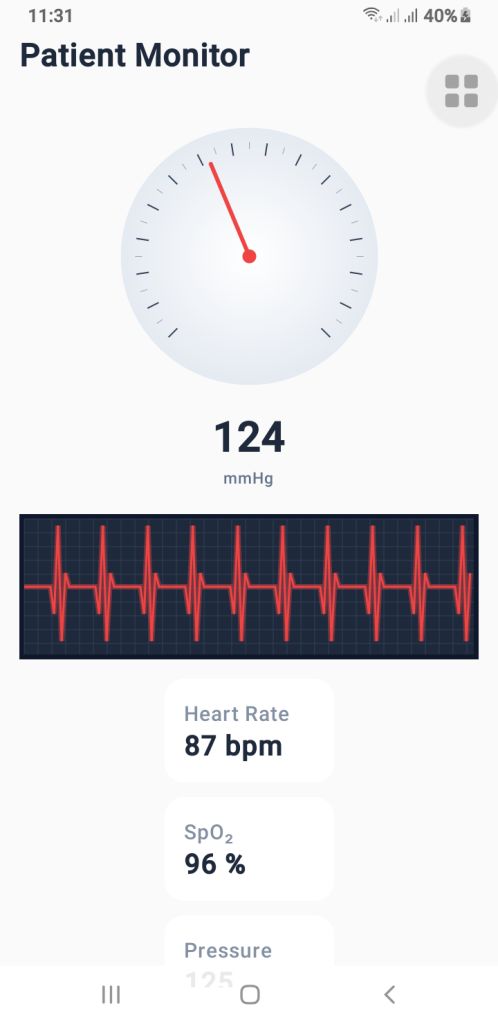
In this guide, we’ll walk through a complete real-time vital monitoring UI built entirely with Canvas, animations, and Jetpack Compose.
The final setup includes:

  • A pressure gauge (mmHg) for blood pressure visualization
  • A real-time ECG waveform renderer
  • A vital simulator that generates dynamic heartbeat, SpO₂, and pressure values

If you’re creating a health monitoring interface, these components provide a great foundation.

1. The Blood Pressure Gauge’s (PressureGauge) user interface

The PressureGauge composable makes a round gauge that is fully animated and looks like the dials on professional sphygmomanometers used in clinics.
Important parts of the gauge

  •  The needle moves smoothly.
  •  It ticks every 10 mmHg.
  •  Major ticks every 20 mmHg.
  •  A soft radial gradient background.
  • A 270° sweep (–135° to +135°), just like a medical pressure meter.

The needle moves smoothly toward the new pressure value when you use animateFloatAsState(). This makes it feel like a real machine, which is great for the UI of an Android blood pressure app.

PressureGauge Code

  
@Composable
fun PressureGauge(
    pressure: Float,
    maxPressure: Float = 300f,
    modifier: Modifier = Modifier
) {
    val animatedPressure by animateFloatAsState(
        targetValue = pressure,
        animationSpec = tween(800, easing = LinearOutSlowInEasing)
    )

    val size = 260.dp
    val center = size / 2

    Box(
        modifier = modifier
            .size(size)
            .padding(12.dp),
        contentAlignment = Alignment.Center
    ) {
        Canvas(modifier = Modifier.fillMaxSize()) {

            val w = this.size.width
            val h = this.size.height
            val cx = w / 2
            val cy = h / 2

            val rotation = -135f + (animatedPressure.coerceAtMost(maxPressure) / maxPressure) * 270f

            // BACKGROUND GRADIENT
            drawCircle(
                brush = Brush.radialGradient(
                    colors = listOf(Color.White, Color(0xFFE2E8F0))
                ),
                radius = w * 0.45f,
                center = Offset(cx, cy)
            )

            // TICKS
            for (i in 0..maxPressure.toInt() step 10) {
                val angle = -135f + (i / maxPressure) * 270f
                val rad = Math.toRadians((angle - 90).toDouble())

                val major = i % 20 == 0
                val length = if (major) 18f else 10f
                val width = if (major) 2f else 1f

                val rOuter = w * 0.4f
                val rInner = rOuter - length

                val x1 = cx + rOuter * cos(rad).toFloat()
                val y1 = cy + rOuter * sin(rad).toFloat()
                val x2 = cx + rInner * cos(rad).toFloat()
                val y2 = cy + rInner * sin(rad).toFloat()

                drawLine(
                    color = if (major) Color(0xFF334155) else Color(0xFF94A3B8),
                    start = Offset(x1, y1), end = Offset(x2, y2),
                    strokeWidth = width
                )
            }

            // NEEDLE
            rotate(rotation, pivot = Offset(cx, cy)) {
                drawLine(
                    start = Offset(cx, cy),
                    end = Offset(cx, cy - w * 0.35f),
                    color = Color(0xFFEF4444),
                    strokeWidth = 6f,
                    cap = StrokeCap.Round
                )
                drawCircle(
                    color = Color(0xFFEF4444),
                    center = Offset(cx, cy),
                    radius = 10f
                )
            }
        }
    }

    Column(horizontalAlignment = Alignment.CenterHorizontally) {
        Text(
            text = animatedPressure.toInt().toString(),
            fontSize = 34.sp,
            fontWeight = FontWeight.Bold,
            color = Color(0xFF1E293B)
        )
        Text(
            text = "mmHg",
            color = Color(0xFF64748B),
            fontSize = 12.sp
        )
    }
}
 
2. PulseECG – A real-time renderer for ECG waveforms

The waveform is the most important visual part of an ECG app for Android. The PulseECG composable makes it look like an ECG trace is moving by constantly moving a list of points.
How it works
Keeps a list of 120 points that keeps changing
Changes values based on two conditions:
active: ECG is working
beating: heartbeats
Makes a dark grid that looks like a medical one
Draws a glowing red ECG path to make it look real
It looks a lot like real ECG monitor output and can easily take real medical data.

PulseECG Code

  
@Composable
fun PulseECG(
    active: Boolean,
    beating: Boolean,
    modifier: Modifier = Modifier
) {
    var points by remember { mutableStateOf(List(120) { 50f }) }
    var tick by remember { mutableStateOf(0) }

    LaunchedEffect(active, beating) {
        while (true) {
            delay(40)

            val new = points.toMutableList()
            new.removeAt(0)

            val updated = when {
                !active -> 50f
                !beating -> 50f + (Math.random().toFloat() - 0.5f) * 8f
                else -> when (tick % 12) {
                    0 -> 50f
                    1 -> 30f
                    2 -> 95f
                    3 -> 10f
                    4 -> 60f
                    else -> 50f
                }
            }
            new.add(updated)
            points = new

            if (beating) tick++
        }
    }

    Canvas(
        modifier = modifier
            .fillMaxWidth()
            .height(110.dp)
            .background(Color(0xFF0F172A))
            .padding(4.dp)
    ) {
        val w = size.width
        val h = size.height

        // GRID
        drawRect(Color(0xFF1E293B))
        for (x in 0 until w.toInt() step 20)
            drawLine(Color(0xFF334155), Offset(x.toFloat(), 0f), Offset(x.toFloat(), h))
        for (y in 0 until h.toInt() step 20)
            drawLine(Color(0xFF334155), Offset(0f, y.toFloat()), Offset(w, y.toFloat()))

        // ECG line
        val path = Path()
        points.forEachIndexed { i, v ->
            val x = (i / points.size.toFloat()) * w
            val y = h - (v / 100f) * h
            if (i == 0) path.moveTo(x, y) else path.lineTo(x, y)
        }

        // Glow
        drawPath(
            path = path,
            color = Color(0xFFEF4444).copy(alpha = 0.4f),
            style = Stroke(width = 8f)
        )

        drawPath(
            path = path,
            color = Color(0xFFEF4444),
            style = Stroke(width = 3f)
        )

    }
}
 
3. VitalSimulator – Generating Real-Time Readings

For demo purposes—or previewing UI—you can use VitalSimulator, a small composable that generates random:

  • Blood pressure
  • Heart rate (BPM)
  • SpO₂ oxygen level

This is especially useful while building a heart rate monitor Android interface.

VitalSimulator Code

 
@Composable
fun VitalSimulator(): Triple<Float, Float, Float> {
    var pressure by remember { mutableStateOf(120f) }
    var bpm by remember { mutableStateOf(75f) }
    var spo2 by remember { mutableStateOf(97f) }

    LaunchedEffect(Unit) {
        while (true) {
            delay(1500)
            pressure = (110..135).random().toFloat()
            bpm = (72..90).random().toFloat()
            spo2 = (96..99).random().toFloat()
        }
    }

    return Triple(pressure, bpm, spo2)
}
Putting It All Together

By combining these composables, you can build a polished dashboard showing:

  • Animated blood pressure
  • Real-time ECG waveform
  • BPM and SpO₂ levels

This is an excellent base for medical-style dashboards or consumer wellness applications.


Download Source Code

Final Thoughts

Jetpack Compose makes it possible to build real-time health monitoring dashboards with only a few clean, efficient composables. Whether you’re working on a blood pressure app Android, an ECG app Android, or a heart rate monitor Android, these components give you a professional, animated, and scalable UI foundation.

Stunning Custom Analog Clock in Android – Java & Kotlin

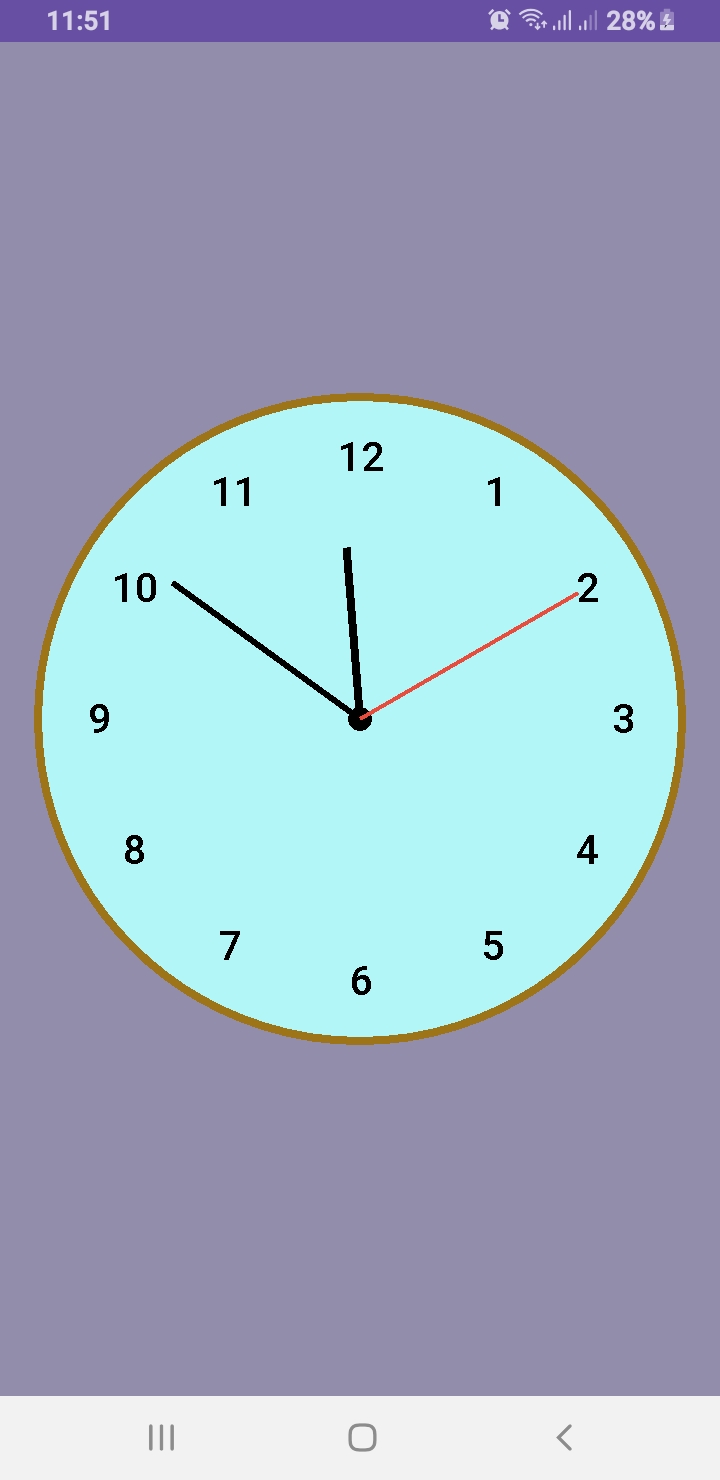
Want to design a custom analog clock in Android? In this post, you’ll learn how to create one using both Java and Kotlin. Whether you’re building a utility app, dashboard UI, or simply improving your UI skills, this is the perfect project to implement a working analog clock in Android.

🎯 What’s Inside This Project?

You’ll get the complete source code for both languages, canvas-based drawing, second-by-second ticking hands, and a beautiful rounded design. Let’s dive into development!

✅ What You’ll Learn

  • How to draw a custom analog clock using Canvas
  • Java and Kotlin implementations side by side
  • Center dot, circular frame, and dynamic ticking hands
  • Modern, responsive UI layout for all screen sizes

This article provides two versions: AnalogClockView.java and AnalogClockViewKotlin.kt. You can use either based on your language preference.

📄 XML Layout

To use the custom clock in your activity, add this to your activity_main.xml:

<?xml version="1.0" encoding="utf-8"?>
<RelativeLayout xmlns:android="http://schemas.android.com/apk/res/android"
    xmlns:tools="http://schemas.android.com/tools"
    android:layout_width="match_parent"
    android:layout_height="match_parent"
    tools:context=".MainActivity">

    <www.alsaeeddev.clock.AnalogClockView
        android:id="@+id/analogClock"
        android:layout_width="match_parent"
        android:layout_height="match_parent"
        android:layout_centerInParent="true" />

</RelativeLayout>

📦 Java Code: AnalogClockView.java

 
package www.alsaeeddev.clock;
import android.content.Context;
import android.graphics.Canvas;
import android.graphics.Color;
import android.graphics.Paint;
import android.graphics.Rect;
import android.util.AttributeSet;
import android.view.View;

import java.util.Calendar;

public class AnalogClockView extends View {

    private Paint paint;
    private int width, height, radius;
    private int padding = 0;
    private int numeralSpacing = 30;
    private int handTruncation, hourHandTruncation;
    private final int[] numbers = {1,2,3,4,5,6,7,8,9,10,11,12};
    private Rect textBounds = new Rect();

    public AnalogClockView(Context context) {
        super(context);
        init();
    }

    public AnalogClockView(Context context, AttributeSet attrs) {
        super(context, attrs);
        init();
    }

    private void init() {
        paint = new Paint();
    }

    @Override
    protected void onDraw(Canvas canvas) {
        width = getWidth();
        height = getHeight();
        int min = Math.min(width, height);
        radius = min / 2 - 40;

        canvas.drawColor(Color.parseColor("#928dab")); // Background

        // Draw clock background
        paint.reset();
        paint.setColor(Color.parseColor("#b3f6f8"));
        paint.setStyle(Paint.Style.FILL);
        canvas.drawCircle((float) width /2, (float) height /2, radius + 30, paint);

        paint.setStyle(Paint.Style.STROKE);
        paint.setColor(Color.parseColor("#9e7419"));
        paint.setStrokeWidth(8f);
        canvas.drawCircle((float) width /2, (float) height /2, radius + 30, paint);

        // Draw center dot
        paint.setStyle(Paint.Style.FILL);
        paint.setColor(Color.BLACK);
        canvas.drawCircle((float) width /2, (float) height /2, 12, paint);

        // Draw clock numbers
        paint.setTextSize(40);
        paint.setColor(Color.BLACK);
        for (int number : numbers) {
            String tmp = String.valueOf(number);
            paint.getTextBounds(tmp, 0, tmp.length(), textBounds);
            double angle = Math.PI / 6 * (number - 3);
            int x = (int)((double) width /2 + Math.cos(angle) * (radius - numeralSpacing) - (double) textBounds.width() /2);
            int y = (int)((double) height /2 + Math.sin(angle) * (radius - numeralSpacing) + (double) textBounds.height() /2);
            canvas.drawText(tmp, x, y, paint);
        }

        // Get time
        Calendar calendar = Calendar.getInstance();
        int hour = calendar.get(Calendar.HOUR);
        int minute = calendar.get(Calendar.MINUTE);
        int second = calendar.get(Calendar.SECOND);

        drawHand(canvas, (hour + minute / 60.0) * 5f, true, false); // Hour hand
        drawHand(canvas, minute, false, false);                     // Minute hand
        drawHand(canvas, second, false, true);                      // Second hand

        postInvalidateDelayed(1000);
        invalidate();
    }


// draw the clock hands
    private void drawHand(Canvas canvas, double loc, boolean isHour, boolean isSecond) {
        double angle = Math.PI * loc / 30 - Math.PI / 2;
        int handRadius = isHour ? radius - 120 : radius - 60;
        if (isSecond) handRadius = radius - 40;

        paint.setColor(isSecond ? Color.parseColor("#e74c3c") : Color.BLACK);
        paint.setStrokeWidth(isSecond ? 4f : isHour ? 8f : 6f);
        canvas.drawLine((float) width /2, (float) height /2,
                (float)((double) width /2 + Math.cos(angle) * handRadius),
                (float)((double) height /2 + Math.sin(angle) * handRadius),
                paint);
    }
}

🧑‍💻 Kotlin Code: AnalogClockViewKotlin.kt

 
package www.alsaeeddev.clock

import android.content.Context
import android.graphics.Canvas
import android.graphics.Color
import android.graphics.Paint
import android.graphics.Rect
import android.util.AttributeSet
import android.view.View
import java.util.Calendar
import kotlin.math.cos
import kotlin.math.min
import kotlin.math.sin

class AnalogClockViewKotlin @JvmOverloads constructor(
    context: Context, attrs: AttributeSet? = null
) : View(context, attrs) {

    private val paint = Paint()
    private val numbers = (1..12).toList()
    private val textBounds = Rect()
    private var widthCenter = 0
    private var heightCenter = 0
    private var radius = 0

    init {
        paint.isAntiAlias = true
    }

    override fun onDraw(canvas: Canvas) {
        super.onDraw(canvas)

        widthCenter = width / 2
        heightCenter = height / 2
        radius = min(widthCenter, heightCenter) - 60

        drawBackground(canvas)
        drawCenterDot(canvas)
        drawNumbers(canvas)
        drawHands(canvas)

        postInvalidateDelayed(1000)
        invalidate()
    }

    private fun drawBackground(canvas: Canvas) {
        paint.reset()
        paint.isAntiAlias = true

        // Clock circle fill
        paint.color = Color.parseColor("#b3f6f8")
        paint.style = Paint.Style.FILL
        canvas.drawCircle(widthCenter.toFloat(), heightCenter.toFloat(), radius + 30f, paint)

        // Clock border
        paint.style = Paint.Style.STROKE
        paint.strokeWidth = 8f
        paint.color = Color.parseColor("#9e7419")
        canvas.drawCircle(widthCenter.toFloat(), heightCenter.toFloat(), radius + 30f, paint)
    }

    private fun drawCenterDot(canvas: Canvas) {
        paint.style = Paint.Style.FILL
        paint.color = Color.BLACK
        canvas.drawCircle(widthCenter.toFloat(), heightCenter.toFloat(), 12f, paint)
    }

    private fun drawNumbers(canvas: Canvas) {
        paint.textSize = 40f
        paint.color = Color.BLACK
        for (number in numbers) {
            val numStr = number.toString()
            paint.getTextBounds(numStr, 0, numStr.length, textBounds)
            val angle = Math.PI / 6 * (number - 3)
            val x = (widthCenter + cos(angle) * (radius - 30) - textBounds.width() / 2).toFloat()
            val y = (heightCenter + sin(angle) * (radius - 30) + textBounds.height() / 2).toFloat()
            canvas.drawText(numStr, x, y, paint)
        }
    }

    private fun drawHands(canvas: Canvas) {
        val calendar = Calendar.getInstance()
        val hour = calendar.get(Calendar.HOUR)
        val minute = calendar.get(Calendar.MINUTE)
        val second = calendar.get(Calendar.SECOND)

        drawHand(canvas, (hour + minute / 60f) * 5, isHour = true, isSecond = false)
        drawHand(canvas, minute.toFloat(), isHour = false, isSecond = false)
        drawHand(canvas, second.toFloat(), isHour = false, isSecond = true)
    }

    private fun drawHand(canvas: Canvas, loc: Float, isHour: Boolean, isSecond: Boolean) {
        val angle = Math.PI * loc / 30 - Math.PI / 2
        val handLength = when {
            isHour -> radius - 120
            isSecond -> radius - 30
            else -> radius - 60
        }

        paint.color = if (isSecond) Color.parseColor("#e74c3c") else Color.BLACK
        paint.strokeWidth = when {
            isHour -> 8f
            isSecond -> 4f
            else -> 6f
        }
        paint.style = Paint.Style.STROKE

        canvas.drawLine(
            widthCenter.toFloat(), heightCenter.toFloat(),
            (widthCenter + cos(angle) * handLength).toFloat(),
            (heightCenter + sin(angle) * handLength).toFloat(),
            paint
        )
    }
}


✅ Conclusion

Creating a custom analog clock in Android is a great way to explore Canvas drawing, custom views, and elegant UI development. Whether you choose Java or Kotlin, the outcome is a clean and dynamic clock component ready for your next project.

We used the Paint class extensively to draw shapes and text on the canvas. To learn more about its capabilities, see the official documentation here:
🔗 Android Developers

Don’t forget to share and follow Al Saeed for more hands-on Android tutorials.

Media Player in Android Studio Using Kotlin | Media Player Source Code

If you’re looking to create a simple media player in Android Studio using Kotlin, this article will guide you through the core of your project: the MainActivity. This is where permissions are handled, songs are loaded from device storage, and user interactions are managed.

Overview of Media Player MainActivity

The MainActivity is responsible for:

  • Checking and requesting runtime permissions
  • Fetching music files from the device storage
  • Binding to the MusicService for background playback
  • Handling user interactions like play, pause, next, and previous

Kotlin Code Breakdown for Media Player

The class implements AppCompatActivity and ServiceConnection to establish communication with the background music service. It uses ActivityMainBinding for UI binding and coroutines to prevent blocking the main thread while querying songs from MediaStore.

Permission Handling for Media Player

For Android 13+ (Tiramisu), it requests READ_MEDIA_AUDIO. For earlier versions, READ_EXTERNAL_STORAGE is used.

Loading Songs

The app queries MediaStore.Audio.Media using a coroutine and populates the songsList if the files exist.

Binding Media Player to MusicService

On successful service connection, the list is passed to the service and the UI is updated with the currently playing song title.

Media Player Controls and Playback

The play/pause, next, and previous buttons update the state using MusicService. The UI is automatically refreshed using updateControls().

Other Media Player App Classes

To complete the media player, create the following Kotlin classes and paste their code accordingly:

  • MusicService.kt – Manages playback in the background
  • AudioModel.kt – Data class representing a song
  • MusicAdapter.kt – Binds song data to RecyclerView
  • MusicPlayerActivity.kt – Full screen music controls

1. MainActivity.kt


  class MainActivity : AppCompatActivity(), ServiceConnection {
    private var musicService: MusicService? = null
    private var isServiceBound = false
    private lateinit var binding: ActivityMainBinding
    private val songsList: MutableList = mutableListOf()
    private lateinit var adapter: MusicAdapter
    private var isPlaying = false

    override fun onCreate(savedInstanceState: Bundle?) {
        super.onCreate(savedInstanceState)
        binding = ActivityMainBinding.inflate(layoutInflater)
        setContentView(binding.root)
        window.statusBarColor = Color.WHITE

        if (!checkPermission()) {
            requestPermission()

        } else {
            initializeApp()
        }

    }


    private fun initializeApp() {
        // Launch coroutine on Main thread
        CoroutineScope(Dispatchers.Main).launch {

            // Show progress bar
            binding.progressBar.visibility = View.VISIBLE

            val songs = withContext(Dispatchers.IO) {
                val songs = ArrayList()
                val projection = arrayOf(
                    MediaStore.Audio.Media.TITLE,
                    MediaStore.Audio.Media.DATA,
                    MediaStore.Audio.Media.DURATION
                )
                val selection = MediaStore.Audio.Media.IS_MUSIC + " !=0"

                contentResolver.query(
                    MediaStore.Audio.Media.EXTERNAL_CONTENT_URI,
                    projection,
                    selection,
                    null,
                    null
                )?.use { cursor ->
                    while (cursor.moveToNext()) {
                        val audioModel = AudioModel(
                            cursor.getString(1),
                            cursor.getString(0),
                            cursor.getString(2)
                        )
                        if (File(audioModel.path).exists()) {
                            songs.add(audioModel)
                        }
                    }
                }
                songs
            }

            // Hide progress bar
            binding.progressBar.visibility = View.GONE

            songsList.clear()
            songsList.addAll(songs)

            adapter = MusicAdapter(this@MainActivity, songsList) { position ->
                if (isPlaying) {
                    musicService?.musicPlay(songsList)
                    binding.songTitle.text = songsList[MyMediaPlayer.currentIndex].title
                    adapter.notifyDataSetChanged()
                } else {

                    if (songsList.isNotEmpty()) {
                        val intent = Intent(this@MainActivity, MusicPlayerActivity::class.java)
                        intent.putExtra("List", songsList as Serializable)
                        intent.flags = Intent.FLAG_ACTIVITY_NEW_TASK
                        startActivity(intent)
                    } else {
                        Toast.makeText(this@MainActivity, "No songs to play", Toast.LENGTH_SHORT)
                            .show()
                    }

                }
            }

            binding.recyclerView.layoutManager = LinearLayoutManager(this@MainActivity)
            binding.recyclerView.adapter = adapter
            binding.noSongFound.visibility = if (songsList.isEmpty()) View.VISIBLE else View.GONE

            setupControls()
        }
    }


    private fun setupControls() {
        val intent = Intent(this, MusicService::class.java)
        bindService(intent, this, Context.BIND_AUTO_CREATE)

        binding.pausePlay.setOnClickListener {
            musicService?.getMusicPlayer()?.let {
                if (it.isPlaying) {
                    it.pause()
                    binding.pausePlay.setImageResource(R.drawable.play_ic)
                } else {
                    it.start()
                    binding.pausePlay.setImageResource(R.drawable.pause_ic)
                }
            }
        }


        binding.next.setOnClickListener { musicNext() }
        binding.previous.setOnClickListener { musicPrevious() }

        binding.controls.setOnClickListener {
            val intent1 = Intent(this@MainActivity, MusicPlayerActivity::class.java)
            intent1.putExtra("IS", true)
            intent1.putExtra("List", songsList as Serializable)
            startActivity(intent1)
        }
    }


    private fun musicNext() {

        musicService?.next()
        binding.songTitle.text = songsList[MyMediaPlayer.currentIndex].title
        adapter.notifyDataSetChanged()

    }


    private fun musicPrevious() {
        musicService?.previous()
        binding.songTitle.text = songsList[MyMediaPlayer.currentIndex].title
        adapter.notifyDataSetChanged()

    }


    private fun checkPermission(): Boolean {

        val result = ContextCompat.checkSelfPermission(
            this@MainActivity,
            Manifest.permission.READ_EXTERNAL_STORAGE
        )

        if (result == PackageManager.PERMISSION_GRANTED) {
            return true

        } else {
            return false
        }
    }


    private fun requestPermission() {
        val permission = Manifest.permission.READ_EXTERNAL_STORAGE

        if (Build.VERSION.SDK_INT >= Build.VERSION_CODES.TIRAMISU) {
            // For Android 13+ (Tiramisu), use READ_MEDIA_AUDIO instead
            ActivityCompat.requestPermissions(
                this,
                arrayOf(Manifest.permission.READ_MEDIA_AUDIO),
                92
            )
        } else {

            ActivityCompat.requestPermissions(
                this,
                arrayOf(permission),
                92
            )

        }
    }


    override fun onRequestPermissionsResult(
        requestCode: Int,
        permissions: Array,
        grantResults: IntArray
    ) {
        super.onRequestPermissionsResult(requestCode, permissions, grantResults)

        if (requestCode == 92 && grantResults.isNotEmpty() && grantResults[0] == PackageManager.PERMISSION_GRANTED) {
            Toast.makeText(this, "Permission granted", Toast.LENGTH_SHORT).show()
            initializeApp() // Or load your music files
        } else {
            Toast.makeText(this, "Permission denied", Toast.LENGTH_SHORT).show()
            requestPermission()
        }
    }


    override fun onServiceConnected(name: ComponentName?, service: IBinder?) {
        val binder = service as MusicService.MyBinder
        musicService = binder.currentService()
        isServiceBound = true
        musicService!!.setSongLIst(songsList)

        // Update the controls based on the current state of the media player
        updateControls()
    }

    override fun onServiceDisconnected(name: ComponentName?) {
        musicService = null
        isServiceBound = false
    }


    private fun updateControls() {
        musicService?.getMusicPlayer()?.let { mediaPlayer ->
            if (mediaPlayer.isPlaying) {
                binding.controls.visibility = View.VISIBLE
                binding.songTitle.text = songsList[MyMediaPlayer.currentIndex].title
                binding.pausePlay.setImageResource(R.drawable.pause_ic)
                isPlaying = true
            } else {
                isPlaying = false
                binding.controls.visibility = View.GONE
            }

            mediaPlayer.setOnCompletionListener {
                musicNext() // Move to the next song when the current song is completed.
            }
        }

    }

    @SuppressLint("NotifyDataSetChanged")
    override fun onResume() {
        super.onResume()
        if (::adapter.isInitialized) {
            adapter.notifyDataSetChanged()
            updateControls()
        }

    }

    override fun onDestroy() {
        super.onDestroy()
        if (isServiceBound) {
            unbindService(this)
            isServiceBound = false
        }
    }
}

2. MusicService.kt


class MusicService : Service() {

    private var myBinder = MyBinder()
    private var mediaPlayer: MediaPlayer? = MyMediaPlayer.getInstance()
    private var currentSongPath: String? = null
    private var isAlreadyPlaying = false
    private var songsList: List? = null


    fun setSongLIst(list: List) {
        songsList = list

    }

    public fun getMusicPlayer(): MediaPlayer? {
        return mediaPlayer
    }


    override fun onBind(intent: Intent?): IBinder? {
        return myBinder

    }


    fun musicPlay(songList: List) {
        currentSongPath = songList[MyMediaPlayer.currentIndex].path
        mediaPlayer!!.reset()
        mediaPlayer!!.setDataSource(currentSongPath)
        mediaPlayer!!.prepare()
        mediaPlayer!!.start()

    }


    fun pause() {
        mediaPlayer?.pause()
        Log.d("MyService", "Pausing music")
    }

    fun stop() {
        mediaPlayer?.stop()
        Log.d("MyService", "Stopping music")
    }


    fun next() {
        if (MyMediaPlayer.currentIndex == songsList!!.size - 1) {
            return
        }

        MyMediaPlayer.currentIndex += 1
        mediaPlayer!!.reset()
        if (songsList != null) {
            musicPlay(songsList!!)
        }
        isAlreadyPlaying = false


    }


    fun previous() {
        if (MyMediaPlayer.currentIndex == 0) {
            return
        }
        MyMediaPlayer.currentIndex -= 1
        mediaPlayer!!.reset()
        if (songsList != null) {
            musicPlay(songsList!!)
        }
        isAlreadyPlaying = false

    }


    fun getPlayingStatus(): Boolean {
        return isAlreadyPlaying
    }


    fun isPlaying(): Boolean {
        return mediaPlayer?.isPlaying ?: false
    }

    fun getCurrentPosition(): Int {
        return mediaPlayer?.currentPosition ?: 0
    }

    fun seekTo(position: Int) {
        mediaPlayer?.seekTo(position)
    }


    override fun onDestroy() {
        super.onDestroy()
    }


    inner class MyBinder : Binder() {
        fun currentService(): MusicService {
            return this@MusicService
        }
    }

}

3. MusicAdapter.kt


class MusicAdapter(
    private val context: Context,
    private val songList: List,
    private val onClick: (Int) -> Unit
) : RecyclerView.Adapter() {


    override fun onCreateViewHolder(parent: ViewGroup, viewType: Int): ItemHolder {
        val view = SongItemBinding.inflate(LayoutInflater.from(context), parent, false)
        return ItemHolder(view)
    }

    override fun getItemCount(): Int {
        return songList.size
    }


    public fun getSongLIst(): List {
        return songList
    }

    override fun onBindViewHolder(holder: ItemHolder, position: Int) {
        val audioSong = songList[position]
        holder.bind(audioSong, position)
    }


    inner class ItemHolder(private val binding: SongItemBinding) :
        RecyclerView.ViewHolder(binding.root) {


        fun bind(audioSong: AudioModel, position: Int) {

            if (MyMediaPlayer.currentIndex == position) {
                binding.tvSongTitle.setTextColor(Color.RED)
            } else {
                binding.tvSongTitle.setTextColor(Color.BLACK)
            }
            binding.tvSongTitle.text = audioSong.title
            //   binding.ivMusic.setImageResource(R.drawable.music_ic)

            binding.root.setOnClickListener {
                MyMediaPlayer.getInstance().reset()
                MyMediaPlayer.currentIndex = adapterPosition
                onClick(adapterPosition)


            }

        }

    }
}


Download Source Code

Conclusion

This Android media player in Kotlin is lightweight, efficient, and follows best practices for modern development using ViewBinding, coroutines, and service components. Add more features like notifications, shuffle, or repeat to further enhance your app.

You can also Check Out the official Android Media Player Documentation.
Want to learn more? Visit our tutorials at Blog .