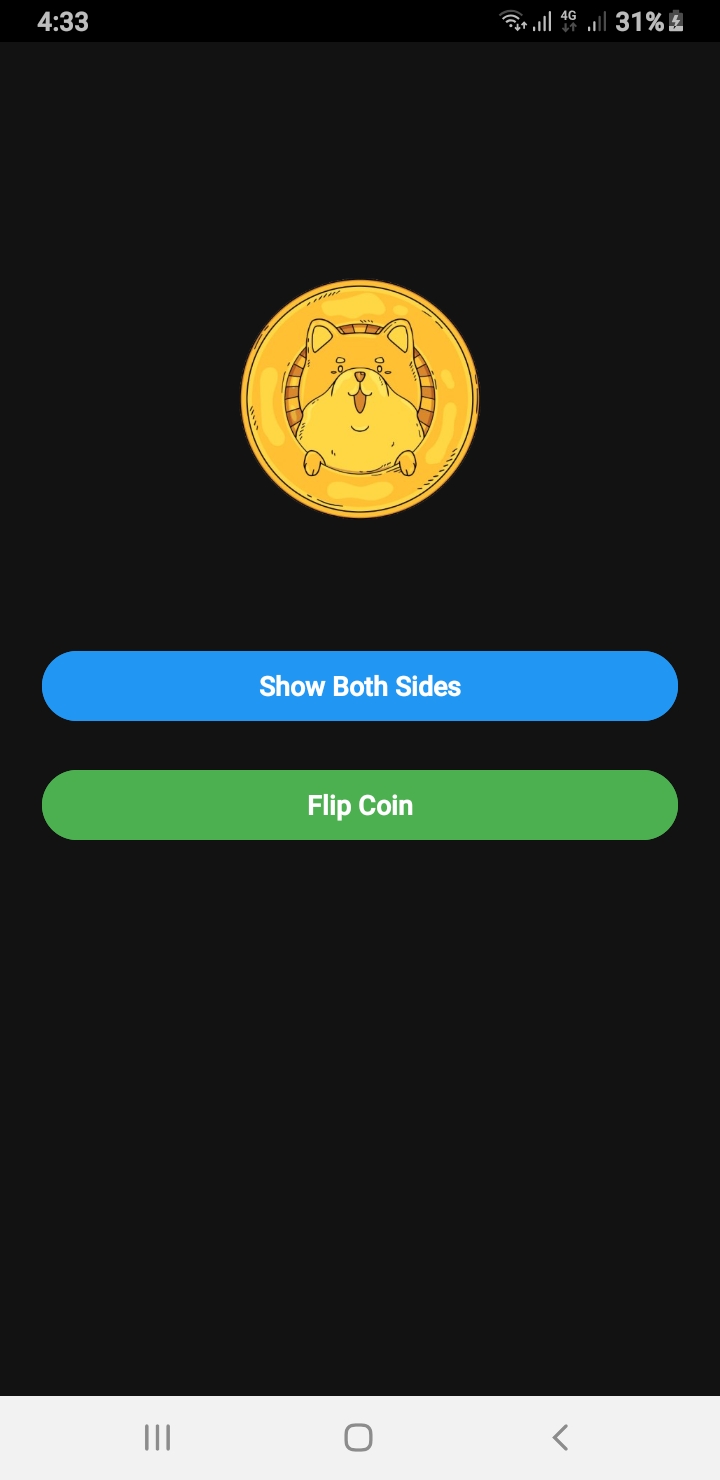
If you are searching for a Flip Coin Source Code Android example, this guide will walk you through building a realistic coin flip animation in Android using Java. This example includes sound effects, both sides of the coin visible during flipping, and a clean user interface built with ConstraintLayout.
Why Use This Flip Coin Source Code Android Example?
This project is perfect for beginners and intermediate developers who want to learn about animations, MediaPlayer usage, and responsive layouts. Whether you are creating a decision-making app, a fun game, or just experimenting with Android animations, this Flip Coin Source Code Android will save you time and effort.
Flip Coin Source Code Android – MainActivity.java
public class MainActivity extends AppCompatActivity {

    ImageView coinImage;
    Button btnShowSides, btnFlip;
    int side = 0;

    @Override
    protected void onCreate(Bundle savedInstanceState) {
        super.onCreate(savedInstanceState);
        setContentView(R.layout.activity_main);
        ViewCompat.setOnApplyWindowInsetsListener(findViewById(R.id.main), (v, insets) -> {
            Insets systemBars = insets.getInsets(Type.systemBars());
            v.setPadding(systemBars.left, systemBars.top, systemBars.right, systemBars.bottom);
            return insets;
        });
        // Set status bar color to black
        getWindow().setStatusBarColor(ContextCompat.getColor(this, R.color.black));

        coinImage = findViewById(R.id.coinImage);
        btnShowSides = findViewById(R.id.btnShowSides);
        btnFlip = findViewById(R.id.btnFlip);
        coinImage.setImageResource(R.drawable.head); //  Set initial image
        btnFlip.setEnabled(true);

        btnShowSides.setOnClickListener(view -> {
            showBothSidesInstant();

        });

        btnFlip.setOnClickListener(view -> flipCoinRealistically());
    }


    private void showBothSidesInstant() {
        if (side == 0) {
            coinImage.setImageResource(R.drawable.tail);
            side = 1;
        } else {
            coinImage.setImageResource(R.drawable.head);
            side = 0;
        }
    }

    private void flipCoinRealistically() {
        boolean isHeads = new Random().nextBoolean();

        // Optional: play coin flip sound
        MediaPlayer mp = MediaPlayer.create(this, R.raw.coin_sound);
        mp.start();
        mp.setOnCompletionListener(MediaPlayer::release);

        // Track which side is showing
        final boolean[] showingHeads = {true};

        // Listener to change image mid-flip
        ValueAnimator flipAnimator = ValueAnimator.ofFloat(0f, 1f);
        flipAnimator.setDuration(5000); // total time
        flipAnimator.setInterpolator(new LinearInterpolator());
        flipAnimator.addUpdateListener(animation -> {
            float progress = (float) animation.getAnimatedValue();
            float totalRotation = progress * 4320f; // 12 full flips (10 fast + 2 slow)
            coinImage.setRotationX(totalRotation);

            // At every 180°, swap image
            if ((int) (totalRotation / 180) % 2 == 0 && !showingHeads[0]) {
                coinImage.setImageResource(R.drawable.head);
                showingHeads[0] = true;
            } else if ((int) (totalRotation / 180) % 2 != 0 && showingHeads[0]) {
                coinImage.setImageResource(R.drawable.tail);
                showingHeads[0] = false;
            }
        });

        // When done, show final result
        flipAnimator.addListener(new AnimatorListenerAdapter() {
            @Override
            public void onAnimationEnd(Animator animation) {
                coinImage.setRotationX(0f);
                coinImage.setImageResource(isHeads ? R.drawable.head : R.drawable.tail);
            }
        });

        flipAnimator.start();
    }

}
Flip Coin Source Code Android – XML Layout (activity_main.xml)
<androidx.constraintlayout.widget.ConstraintLayout xmlns:android="http://schemas.android.com/apk/res/android"
    xmlns:app="http://schemas.android.com/apk/res-auto"
    android:id="@+id/main"
    android:layout_width="match_parent"
    android:layout_height="match_parent"
    android:background="#121212"
    android:padding="24dp">

    <ImageView
        android:id="@+id/coinImage"
        android:layout_width="200dp"
        android:layout_height="200dp"
        android:layout_marginTop="80dp"
        android:contentDescription="Coin Image"
        android:scaleType="centerInside"
        android:src="@drawable/head"
        app:layout_constraintEnd_toEndOf="parent"
        app:layout_constraintStart_toStartOf="parent"
        app:layout_constraintTop_toTopOf="parent" />

    <Button
        android:id="@+id/btnShowSides"
        android:layout_width="match_parent"
        android:layout_height="wrap_content"
        android:layout_marginTop="40dp"
        android:backgroundTint="#2196F3"
        android:text="Show Both Sides"
        android:textColor="#FFFFFF"
        app:layout_constraintEnd_toEndOf="parent"
        app:layout_constraintStart_toStartOf="parent"
        app:layout_constraintTop_toBottomOf="@id/coinImage" />

    <Button
        android:id="@+id/btnFlip"
        android:layout_width="match_parent"
        android:layout_height="wrap_content"
        android:layout_marginTop="20dp"
        android:backgroundTint="#4CAF50"
        android:enabled="false"
        android:text="Flip Coin"
        android:textColor="#FFFFFF"
        app:layout_constraintEnd_toEndOf="parent"
        app:layout_constraintStart_toStartOf="parent"
        app:layout_constraintTop_toBottomOf="@id/btnShowSides" />

</androidx.constraintlayout.widget.ConstraintLayout>
How to Implement Flip Coin Source Code Android
- Copy the Java code into your
MainActivity.javafile. - Replace the XML layout with the one provided above.
- Add
head.pngandtail.pngimages in yourdrawablefolder. - Add a
coin_sound.mp3in yourres/rawfolder. - Run the app to enjoy realistic coin flipping.
Learn More About Android Development
For more details on animations and UI components, check out the Official Android Developer Documentation. You can also explore my Blog for more examples.
This Flip Coin Source Code Android project is easy to customize and can be integrated into decision-making apps, games, or entertainment tools.