News API Integration In Android App Java

In today’s mobile-first world, delivering real-time content quickly and smoothly is crucial for user engagement. In this tutorial on News API Integration In Android App Java, you’ll learn how to fetch and display news articles in an Android app using Retrofit, RecyclerView, and ProgressBar, while implementing an infinite scroll feature β€” all written in Java.

By the end of this guide, you will have a working news app that fetches the latest articles based on a search query and loads more content as the user scrolls down.


πŸš€ Key Components We’ll Use

  • RecyclerView β€” To display news articles in a scrollable list.
  • ProgressBar β€” To show loading status while fetching data.
  • Retrofit β€” For efficient and safe API calls.
  • Infinite Scrolling β€” Load more news automatically when the user reaches the end.
  • Handler β€” To simulate slight loading delays during pagination.

πŸ”§ Step-by-Step Implementation

1. Setting Up RecyclerView

First, we initialize our RecyclerView and set up a custom NewsAdapter to bind news articles dynamically.


private void setupRecyclerView() {
    recyclerView.setLayoutManager(new LinearLayoutManager(this));
    adapter = new NewsAdapter(this, listArticles, article -> {
        NewsDialogFragment dialogFragment = NewsDialogFragment.newInstance(article);
        dialogFragment.show(getSupportFragmentManager(), "NewsDialogFragment");
    });
    recyclerView.setAdapter(adapter);
}

Here, each news item is clickable and opens a DialogFragment to show article details.


2. Fetching News Using Retrofit

We use Retrofit to fetch news data asynchronously from an API. Here’s the main method:

πŸ”” Note: Make sure to replace API_KEY with your actual News API key to successfully fetch the news data.
You can get your API key from NewsAPI.org.

private void fetchNews(String query, int limit, int offset) {
    NewsApiService apiService = ApiClient.getRetrofitInstance().create(NewsApiService.class);

    Call<ArticlesResponse> call = apiService.getArticles(query, limit, offset, API_KEY);
    call.enqueue(new Callback<ArticlesResponse>() {
        @Override
        public void onResponse(@NonNull Call<ArticlesResponse> call, @NonNull Response<ArticlesResponse> response) {
            isLoading = false;
            adapter.removeLoadingFooter();
            if (response.isSuccessful() && response.body() != null) {
                List<ArticlesResponse.Article> newArticles = response.body().getArticles();
                if (newArticles != null && !newArticles.isEmpty()) {
                    int oldSize = listArticles.size();
                    listArticles.addAll(newArticles);
                    adapter.notifyItemRangeInserted(oldSize, newArticles.size());
                }
            }
            webProgress.setVisibility(View.GONE);
        }

        @Override
        public void onFailure(@NonNull Call<ArticlesResponse> call, @NonNull Throwable t) {
            webProgress.setVisibility(View.GONE);
            Toast.makeText(MainActivity.this, "Error: " + t.getMessage(), Toast.LENGTH_SHORT).show();
        }
    });
}

3. Adding Infinite Scroll (Load More News)

To enable infinite scrolling, we attach a scroll listener to the RecyclerView. When the user scrolls near the bottom, we load more news automatically.


recyclerView.addOnScrollListener(new RecyclerView.OnScrollListener() {
    @Override
    public void onScrolled(@NonNull RecyclerView recyclerView, int dx, int dy) {
        super.onScrolled(recyclerView, dx, dy);

        LinearLayoutManager layoutManager = (LinearLayoutManager) recyclerView.getLayoutManager();
        int totalItemCount = Objects.requireNonNull(layoutManager).getItemCount();
        int lastVisibleItem = layoutManager.findLastVisibleItemPosition();

        if (!isLoading && lastVisibleItem == totalItemCount - 10) {
            isLoading = true;
            adapter.addLoadingFooter();

            new Handler().postDelayed(() -> {
                currentOffset += PAGE_SIZE;
                fetchNews(QUERY, PAGE_SIZE, currentOffset);
            }, 1000); // simulate network delay
        }
    }
});

βœ… This ensures a seamless user experience without manual refresh!


πŸ“± Full MainActivity Java Code

For your reference, here’s the complete MainActivity.java:


public class MainActivity extends AppCompatActivity {
    private ProgressBar webProgress;
    private RecyclerView recyclerView;
    private NewsAdapter adapter;
    private List listArticles = new ArrayList<>();
    private boolean isLoading = false;
    private int currentOffset = 0;
    private final int PAGE_SIZE = 20;
    private final String QUERY = "bitcoin"; // or anything you use

    private static final String API_KEY = "API_KEY";

    @Override
    protected void onCreate(Bundle savedInstanceState) {
        super.onCreate(savedInstanceState);
        setContentView(R.layout.activity_main);
        webProgress = findViewById(R.id.web_progress);
        webProgress.setVisibility(VISIBLE);

        recyclerView = findViewById(R.id.recycler_view);
        setupRecyclerView();

        fetchNews(QUERY, PAGE_SIZE, currentOffset);
    }


    private void fetchNews(String query, int limit, int offset) {
        NewsApiService apiService = ApiClient.getRetrofitInstance().create(NewsApiService.class);

        Call call = apiService.getArticles(query, limit, offset, API_KEY);
        call.enqueue(new Callback() {
            @Override
            public void onResponse(@NonNull Call call, @NonNull Response response) {

                isLoading = false;
                adapter.removeLoadingFooter();

                if (response.isSuccessful() && response.body() != null) {
                    List newArticles = response.body().getArticles();

                    if (newArticles != null && !newArticles.isEmpty()) {
                        int oldSize = listArticles.size();
                        listArticles.addAll(newArticles);

                        adapter.notifyItemRangeInserted(oldSize, newArticles.size());
                    }

                    NewsLog.INSTANCE.d("onResponse", "News Loaded");

                }else {

                    NewsLog.INSTANCE.d("onResponse", "Failed to load news");

                }

                webProgress.setVisibility(View.GONE);

            }

            @Override
            public void onFailure(@NonNull Call call, @NonNull Throwable t) {
                webProgress.setVisibility(View.GONE);
                Toast.makeText(MainActivity.this, "Error: " + t.getMessage(), Toast.LENGTH_SHORT).show();
                NewsLog.INSTANCE.d("onFailure", t.getMessage());
            }
        });
    }


    private void setupRecyclerView(){

        recyclerView.setLayoutManager(new LinearLayoutManager(this));
        adapter = new NewsAdapter(this, listArticles, article -> {
            // listen news click here, to open the news
            NewsDialogFragment dialogFragment = NewsDialogFragment.newInstance(article);
            dialogFragment.show(getSupportFragmentManager(), "NewsDialogFragment");

        });
        recyclerView.setAdapter(adapter);

        recyclerView.addOnScrollListener(new RecyclerView.OnScrollListener() {
            @Override
            public void onScrolled(@NonNull RecyclerView recyclerView, int dx, int dy) {
                super.onScrolled(recyclerView, dx, dy);

                LinearLayoutManager layoutManager = (LinearLayoutManager) recyclerView.getLayoutManager();
                int totalItemCount = Objects.requireNonNull(layoutManager).getItemCount();
                int lastVisibleItem = layoutManager.findLastVisibleItemPosition();

                if (!isLoading && lastVisibleItem == totalItemCount - 10) {
                    isLoading = true;
                    adapter.addLoadingFooter();

                    new Handler().postDelayed(() -> {
                        currentOffset += PAGE_SIZE;
                        fetchNews(QUERY, PAGE_SIZE, currentOffset);
                    }, 1000); // simulate delay

                }
            }
        });

    }

}

πŸ“± Full NewsAdapter Java Code

For your reference, here’s the complete NewsAdapter.java:


public class NewsAdapter extends RecyclerView.Adapter {

    private static final int VIEW_TYPE_ITEM = 0;
    private static final int VIEW_TYPE_LOADING = 1;
    private List articles;
    private Context context;
    private boolean isLoadingAdded = false;
    private onNewsClickListener listener;

    public NewsAdapter(Context context, List articles, onNewsClickListener listener) {
        this.context = context;
        this.articles = articles;
        this.listener = listener;
    }

    @Override
    public int getItemViewType(int position) {
        return (position == articles.size() && isLoadingAdded) ? VIEW_TYPE_LOADING : VIEW_TYPE_ITEM;
    }

    @Override
    public int getItemCount() {
        return articles.size() + (isLoadingAdded ? 1 : 0);
    }

    @NonNull
    @Override
    public RecyclerView.ViewHolder onCreateViewHolder(@NonNull ViewGroup parent, int viewType) {
        if (viewType == VIEW_TYPE_ITEM) {
            View view = LayoutInflater.from(context).inflate(R.layout.item_article, parent, false);
            return new ArticleViewHolder(view);
        } else {
            View view = LayoutInflater.from(context).inflate(R.layout.item_loading, parent, false);
            return new LoadingViewHolder(view);
        }
    }

    @Override
    public void onBindViewHolder(@NonNull RecyclerView.ViewHolder holder, int position) {
        if (getItemViewType(position) == VIEW_TYPE_ITEM) {
            ArticleViewHolder viewHolder = (ArticleViewHolder) holder;
            ArticlesResponse.Article article = articles.get(position);
            viewHolder.title.setText(article.getTitle());
            viewHolder.description.setText(article.getDescription());
            // Add image loading if needed

            Glide.with(context)
                    .load(article.getFeedImage())  // Image URL or resource
                    .apply(new RequestOptions().placeholder(R.drawable.place_holder)
                          //  .error(R.drawable.error_image)
                    )
                    .into(((ArticleViewHolder) holder).imageView);  // The ImageView where the image will be loaded

            holder.itemView.setOnClickListener(v -> {
                int position1 = holder.getAdapterPosition();
                if(listener != null && position1 != RecyclerView.NO_POSITION){
                    listener.onClick(article);
                }
            });

        }
    }

    public void addLoadingFooter() {
        isLoadingAdded = true;
        notifyItemInserted(articles.size());
    }

    public void removeLoadingFooter() {
        if (isLoadingAdded) {
            isLoadingAdded = false;
            notifyItemRemoved(articles.size());
        }
    }

    static class ArticleViewHolder extends RecyclerView.ViewHolder {
        TextView title, description;
        ImageView imageView;

        public ArticleViewHolder(View itemView) {
            super(itemView);
            title = itemView.findViewById(R.id.article_title);
            description = itemView.findViewById(R.id.article_description);
            imageView = itemView.findViewById(R.id.iv_news);
        }
    }

    static class LoadingViewHolder extends RecyclerView.ViewHolder {
        public LoadingViewHolder(View itemView) {
            super(itemView);
        }
    }
}


Download Source Code

🎯 Final Thoughts

By combining Retrofit, RecyclerView, and ProgressBar, we’ve built a highly efficient, real-time news app that supports infinite scrolling in Android using Java.

This pattern is extremely useful for creating news apps, social media feeds, blogs, and any app that requires real-time content loading.

Pro Tip: Always handle error cases smartly (like no internet, API limit errors) to enhance user experience even further.
Barcode Scanner Invoice Generator App in Android Java

Introduction
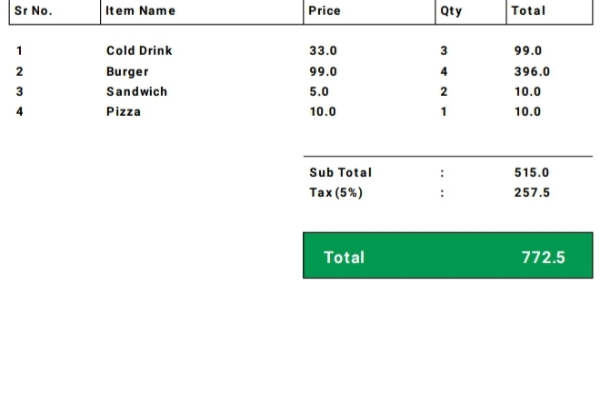
In this tutorial, we will explore how to develop a Barcode Scanner Invoice Generator App in Android Java that allows users to scan barcodes, add products to a list, and generate a PDF invoice. This app is ideal for small businesses or retail stores that need a quick and efficient way to manage transactions. By the end of this guide, you’ll be able to build a fully functional barcode scanner invoice generator app using modern Android development tools.


Prerequisites

Before getting started, ensure you have the following:

  • Android Studio installed
  • Basic knowledge of Java/Kotlin
  • Dependencies for barcode scanning and PDF generation

Step 1: Adding Dependencies

To enable barcode scanning and PDF generation, add the following dependencies to your build.gradle file:

implementation 'com.google.mlkit:barcode-scanning:17.2.0'
implementation 'com.itextpdf:itext7-core:7.1.15'

Step 2: Implement Barcode Scanner

To scan barcodes, use the Google ML Kit. Integrate the camera preview and process the scanned barcode:

BarcodeScannerOptions options =
    new BarcodeScannerOptions.Builder()
        .setBarcodeFormats(Barcode.FORMAT_ALL_FORMATS)
        .build();

BarcodeScanner scanner = BarcodeScanning.getClient(options);

Once a barcode is scanned, retrieve the product details and add them to a list.


Step 3: Displaying Items in RecyclerView

Create a RecyclerView adapter to show scanned products dynamically:

public class ProductAdapter extends RecyclerView.Adapter<ProductAdapter.ViewHolder> {
    private List<Product> productList;
    
    @Override
    public void onBindViewHolder(@NonNull ViewHolder holder, int position) {
        Product product = productList.get(position);
        holder.name.setText(product.getName());
        holder.price.setText(String.valueOf(product.getPrice()));
    }
}

Step 4: Generating a PDF Invoice

Use iText7 to create a PDF file containing the product details and save it to device storage:

PdfWriter writer = new PdfWriter(filePath);
PdfDocument pdfDoc = new PdfDocument(writer);
Document document = new Document(pdfDoc);
document.add(new Paragraph("Invoice"));

for (Product product : productList) {
    document.add(new Paragraph(product.getName() + " - " + product.getPrice()));
}
document.close();

Complete Code Here


1. MainActivity.java


public class MainActivity extends AppCompatActivity {

    Button btnCreatePDf;
    Bitmap bitmap, scaledBitmap;
    EditText etCustomerName;
    private final String[] informationArray = new String[]{"Name", "Company Name", "Address", "Phone", "Email"};

    private int srNumber;
    String ItemName, price, Quantity, priceTotal;


    private RecyclerView recyclerView;

    private MyAdapter adapter;
    private final List listItem = new ArrayList<>();
    private final List fullCodeList = new ArrayList<>();


    private static final int CAMERA_PERMISSION_REQUEST_CODE = 200;


    private DecoratedBarcodeView barcodeView;

    private final Map<String, String> map = new HashMap<>();

    int startingIndex = 5;
    String copyDecodeText;
    int yAxisForValue = 280;
    private List totalPricePerItemList = new ArrayList<>();
    private String customerName;

    String pattern = "^[-+]?[\\d&]*\\.?\\d+$";

    @Override
    protected void onCreate(Bundle savedInstanceState) {
        super.onCreate(savedInstanceState);
        EdgeToEdge.enable(this);
        setContentView(R.layout.activity_main);
        ViewCompat.setOnApplyWindowInsetsListener(findViewById(R.id.main), (v, insets) -> {
            Insets systemBars = insets.getInsets(WindowInsetsCompat.Type.systemBars());
            v.setPadding(systemBars.left, systemBars.top, systemBars.right, systemBars.bottom);
            return insets;
        });
        etCustomerName = findViewById(R.id.etCustomerName);
        btnCreatePDf = findViewById(R.id.btnNext);
        bitmap = BitmapFactory.decodeResource(getResources(), R.drawable.logo_2);

        recyclerView = findViewById(R.id.myRecyclerView);
        barcodeView = findViewById(R.id.zxingBarcodeScanner);
        barcodeView.setStatusText("");

        recyclerView.setLayoutManager(new LinearLayoutManager(this));
        adapter = new MyAdapter(this, listItem, (position, quantity) -> {
            listItem.get(position).setItemQuantity(quantity);
        });
        recyclerView.setAdapter(adapter);

        map.put("1244", "Cold Drink");
        map.put("0054", "Burger");
        map.put("0187", "Sandwich");
        map.put("7176", "Pizza");

        startScanning();
        //scaledBitmap = Bitmap.createScaledBitmap(bitmap,100,100,false);
        ActivityCompat.requestPermissions(this, new String[]{
                Manifest.permission.WRITE_EXTERNAL_STORAGE, Manifest.permission.CAMERA}, PackageManager.PERMISSION_GRANTED);
        {

            //  createPdf();
            startScanning();
            createPdf();
        }

    }


    private void startScanning() {
        barcodeView.decodeContinuous(new BarcodeCallback() {
            @Override
            public void barcodeResult(BarcodeResult result) {
                // Handle the decoded result
                String decodedText = result.getText();
                // addItemToRecyclerView(decodedText);

                if (decodedText.length() == 14) {
                    // Check if barcode has been scanned before
                    if (!fullCodeList.contains(decodedText)) {

                        fullCodeList.add(decodedText);

                        copyDecodeText = decodedText;

                        // Extract the last 4 digits using substring
                        double lastDigitPrice = Double.parseDouble(decodedText.substring(decodedText.length() - 4));

                        String productId = copyDecodeText.substring(startingIndex, startingIndex + 4);

                        if (String.valueOf(lastDigitPrice).matches(pattern) && productId.matches(pattern)) {
                            ItemModel itemModel = new ItemModel(lastDigitPrice, map.get(productId), 1);
                            addItemToRecyclerView(itemModel);
                        }
                    }
                }

            }


            @Override
            public void possibleResultPoints(List resultPoints) {
                // You can use this callback method to show visual cues on the viewfinder.
            }


        });
    }


    private void addItemToRecyclerView(ItemModel item) {
        //  listItem.add(item);
        //   adapter.addItem(item);
        listItem.add(item);
        adapter.notifyItemInserted(listItem.size() - 1);
    }


    private void createPdf() {
        btnCreatePDf.setOnClickListener(v -> {

            if(etCustomerName.getText().length() != 0 && adapter.getItemCount() != 0){

                customerName = etCustomerName.getText().toString();

                PdfDocument pdfDocument = new PdfDocument();
                Paint paint = new Paint();
                //    paint.setLetterSpacing(0.01f);

                PdfDocument.PageInfo pageInfo1 = new PdfDocument.PageInfo.Builder(595, 842, 1).create();
                PdfDocument.Page myPage1 = pdfDocument.startPage(pageInfo1);
                Canvas canvas = myPage1.getCanvas();


                // insert the picture
                int endPosition = pageInfo1.getPageWidth() - 100;
                scaledBitmap = Bitmap.createScaledBitmap(bitmap, 100, 100, false);

                canvas.drawBitmap(scaledBitmap, endPosition, 0, paint);

                // draw a text as like invoice
                paint.setTextAlign(Paint.Align.CENTER);
                paint.setTextSize(32.0f);
                paint.setColor(ContextCompat.getColor(this, R.color.green));
                paint.setTypeface(Typeface.defaultFromStyle(Typeface.BOLD));
                canvas.drawText("Invoice", (float) pageInfo1.getPageWidth() / 2, 100, paint);


                // customer name headiing
                paint.setTextAlign(Paint.Align.LEFT);
                paint.setTextSize(10.0f);
                paint.setColor(Color.BLACK);
                paint.setTypeface(Typeface.defaultFromStyle(Typeface.ITALIC));
                canvas.drawText("Customer Name: "+customerName, 80, 170, paint);


          /*  int endX = pageInfo1.getPageWidth() - 5;

            float textWidth = paint.measureText(getCurrentDate());
            float x = pageInfo1.getPageWidth() - textWidth;*/

                // date and time heading
                paint.setTextAlign(Paint.Align.RIGHT);
                canvas.drawText("Date: " + getCurrentDate(), 590, 170, paint);
                canvas.drawText("Time: " + getCurrentTime(), 590, 180, paint);

                //draw rectangle stroke etc
                paint.setTextAlign(Paint.Align.RIGHT);
                paint.setStyle(Paint.Style.STROKE);
                paint.setStrokeWidth(1);
                //draw rectangle
                canvas.drawRect(10, 220, pageInfo1.getPageWidth() - 10, 250, paint);
                // draw four line vertical, to make portions in rectangle
                canvas.drawLine(100, 220, 100, 250, paint);
                canvas.drawLine(300, 220, 300, 250, paint);
                canvas.drawLine(430, 220, 430, 250, paint);
                canvas.drawLine(500, 220, 500, 250, paint);


                paint.setStrokeWidth(0);
                paint.setStyle(Paint.Style.FILL);
                paint.setTextSize(12.0f);
                paint.setTextAlign(Paint.Align.LEFT);
                paint.setTypeface(Typeface.defaultFromStyle(Typeface.BOLD));

                // draw texts invoice data headings
                canvas.drawText("Sr No.", 15, 240, paint);
                canvas.drawText("Item Name", 105, 240, paint);
                canvas.drawText("Price", 305, 240, paint);
                canvas.drawText("Qty", 435, 240, paint);
                canvas.drawText("Total", 505, 240, paint);

                srNumber = 0;
                for (int sNo = 0; sNo < listItem.size(); sNo++) { srNumber++; // draw values as like qty price item name etc canvas.drawText(srNumber + "", 17, yAxisForValue, paint); canvas.drawText(listItem.get(sNo).getItemName(), 106, yAxisForValue, paint); canvas.drawText(String.valueOf(listItem.get(sNo).getItemPrice()), 306, yAxisForValue, paint); canvas.drawText(String.valueOf(listItem.get(sNo).getItemQuantity()), 435, yAxisForValue, paint); canvas.drawText(calculateTotalPerItem(listItem.get(sNo).getItemPrice(), listItem.get(sNo).getItemQuantity()), 508, yAxisForValue, paint); yAxisForValue += 20; } yAxisForValue += 20; // draw line below of value and above of total canvas.drawLine(300, yAxisForValue, pageInfo1.getPageWidth() - 10, yAxisForValue, paint); yAxisForValue += 20; // draw texts as like total canvas.drawText("Sub Total", 306, yAxisForValue, paint); canvas.drawText(String.valueOf(calculateSubTotal()), 508, yAxisForValue, paint); canvas.drawText(":", 435, yAxisForValue, paint); yAxisForValue += 20; canvas.drawText("Tax (5%)", 306, yAxisForValue, paint); canvas.drawText(String.valueOf(calculateTax()), 508, yAxisForValue, paint); canvas.drawText(":", 435, yAxisForValue, paint); Paint paint2 = new Paint(); paint2.setStrokeWidth(1); // Set the stroke width to 5 (adjust as needed) paint2.setColor(ContextCompat.getColor(this, R.color.black)); // Set the stroke color to black paint2.setStyle(Paint.Style.STROKE); // Set the style to fill and stroke yAxisForValue += 35; // this value uses for top int bottom = yAxisForValue + 45; paint.setColor(ContextCompat.getColor(this, R.color.green)); canvas.drawRect(300, yAxisForValue, pageInfo1.getPageWidth() - 10, bottom, paint); canvas.drawRect(300, yAxisForValue, pageInfo1.getPageWidth() - 10, bottom, paint2); int yValueForGrandTotal = bottom - yAxisForValue; int calc = yValueForGrandTotal / 3; int finalCalc = calc * 2; yAxisForValue += finalCalc; paint.setColor(Color.WHITE); paint.setTypeface(Typeface.defaultFromStyle(Typeface.BOLD)); paint.setTextSize(16.0f); canvas.drawText("Total", 320, yAxisForValue, paint); canvas.drawText(String.valueOf(calculateSubTotal() + calculateTax()), 515, yAxisForValue, paint); paint.setColor(ContextCompat.getColor(this, R.color.black)); paint.setTextAlign(Paint.Align.LEFT); paint.setTextSize(8.0f); canvas.drawText("Invoice Number: " + System.currentTimeMillis(), 17, pageInfo1.getPageHeight() - 20, paint); paint.setTextAlign(Paint.Align.RIGHT); canvas.drawText("Generate by Al Saeed", pageInfo1.getPageWidth() - 17, pageInfo1.getPageHeight() - 20, paint); pdfDocument.finishPage(myPage1); String folderName = "AlsaeedFolder"; // Define your custom folder name File customFolder = new File(Environment.getExternalStorageDirectory(), folderName); if (!customFolder.exists()) { customFolder.mkdirs(); // Create the folder if it doesn't exist } File file = new File(customFolder, "myPDF.pdf"); try { if (Build.VERSION.SDK_INT >= Build.VERSION_CODES.O) {
                        pdfDocument.writeTo(Files.newOutputStream(file.toPath()));
                    } else {
                        pdfDocument.writeTo(new FileOutputStream(file));
                    }
                } catch (IOException e) {
                    throw new RuntimeException(e);
                }

                Toast.makeText(this, "File save in " + file.getAbsolutePath(), Toast.LENGTH_SHORT).show();
                // pdfDocument.close();


                // Open the PDF file using a PDF viewer app
                Intent intent = new Intent(Intent.ACTION_VIEW);
                Uri pdfUri = FileProvider.getUriForFile(this, "alsaeeddev.com.fileProvider", file);
                intent.setDataAndType(pdfUri, "application/pdf");
                intent.setFlags(Intent.FLAG_GRANT_READ_URI_PERMISSION); // Grant read permissions

                try {
                    startActivity(intent); // Launch the PDF viewer activity
                } catch (ActivityNotFoundException e) {
                    // Handle the case where no PDF viewer app is available
                    Toast.makeText(getApplicationContext(), "No PDF viewer app found", Toast.LENGTH_SHORT).show();
                }

                Toast.makeText(this, "File saved in " + file.getAbsolutePath(), Toast.LENGTH_SHORT).show();
                pdfDocument.close();

            }else {
                etCustomerName.setError("Enter Name");
            }


        });
    }


    private String getCurrentDate() {
        // Get the current date
        Calendar calendar = Calendar.getInstance();
        int year = calendar.get(Calendar.YEAR);
        int month = calendar.get(Calendar.MONTH) + 1; // Month is zero-based, so add 1
        int day = calendar.get(Calendar.DAY_OF_MONTH);

// Construct the date string
        return year + "-" + month + "-" + day;

    }


    private String getCurrentTime() {
        // Get the current time
        Calendar calendar = Calendar.getInstance();
        int hour = calendar.get(Calendar.HOUR_OF_DAY); // 24-hour format
        int minute = calendar.get(Calendar.MINUTE);
        int second = calendar.get(Calendar.SECOND);

// Construct the time string
        return hour + ":" + minute + ":" + second;
    }


    private String calculateTotalPerItem(double price, int quantity) {
        double total = price * quantity;
        totalPricePerItemList.add(total);
        return String.valueOf(total);
    }


    private double calculateSubTotal() {
        double subTotal = 0;
        for (int i = 0; i < totalPricePerItemList.size(); i++) {
            subTotal += totalPricePerItemList.get(i);
        }
        return subTotal;
    }


    private double calculateTax() {

        return calculateSubTotal() * 0.5;
    }

    @Override
    protected void onResume() {
        super.onResume();
        barcodeView.resume();
    }

    @Override
    protected void onPause() {
        super.onPause();
        yAxisForValue = 280;
        totalPricePerItemList.clear();
        barcodeView.pause();

    }

    @Override
    protected void onStop() {
        yAxisForValue = 280;
        totalPricePerItemList.clear();
        super.onStop();
    }

    @Override
    protected void onDestroy() {
        listItem.clear();
        fullCodeList.clear();
        super.onDestroy();
    }
}
</pre

2. MyAdapter.java


public class MyAdapter extends RecyclerView.Adapter {
    private final List itemList;

   private final Context context;
  private final QuantityChangeListener listener;

    public MyAdapter(Context context, List data, QuantityChangeListener listener) {
        this.itemList = data;
       this.listener = listener;
       this.context = context;
    }

    @NonNull
    @Override
    public MyViewHolder onCreateViewHolder(@NonNull ViewGroup parent, int viewType) {
        View view = LayoutInflater.from(parent.getContext()).inflate(R.layout.rv_item, parent, false);
        return new MyViewHolder(view);
    }

    @Override
    public void onBindViewHolder(@NonNull MyViewHolder holder, int position) {
        holder.bindData(position);

      //  holder.itemView.setOnClickListener(v -> Toast.makeText(context, itemList.get(position).getItemQuantity(), Toast.LENGTH_SHORT).show());
    }

    @Override
    public int getItemCount() {
        return itemList.size();
    }

    public void addItem(String item) {
      /*  mData.add(item);
        notifyItemInserted(mData.size() - 1);*/

     /*   mData.add(0, item); // Insert item at index 0
        notifyItemInserted(0);*/
    }

    public  class MyViewHolder extends RecyclerView.ViewHolder {
        TextView itemName, itemPrice;
        EditText editText;


        public MyViewHolder(@NonNull View itemView) {
            super(itemView);
            itemName = itemView.findViewById(R.id.tvItemName);
            itemPrice = itemView.findViewById(R.id.tvItemPrice);
            editText = itemView.findViewById(R.id.etQuantity);


        }

        public void bindData(int position) {
            ItemModel item = itemList.get(position);
            itemName.setText(item.getItemName());
           itemPrice.setText(String.valueOf(item.getItemPrice()));
           editText.setText(String.valueOf(item.getItemQuantity()));

           editText.addTextChangedListener(new TextWatcher() {
               @Override
               public void beforeTextChanged(CharSequence s, int start, int count, int after) {

               }

               @Override
               public void onTextChanged(CharSequence s, int start, int before, int count) {
                   if(!TextUtils.isEmpty(s.toString())){
                       int quantity = Integer.parseInt(s.toString());
                       if(quantity != 0) {
                           item.setItemQuantity(quantity);
                           //   if(listener != null && position != RecyclerView.NO_POSITION) {
                           listener.onQuantityChanged(position, quantity);
                       }
                     //  }
                   }
               }

               @Override
               public void afterTextChanged(Editable s) {

               }
           });


        }

   /*     public interface QuantityChangeListener {
            void onQuantityChanged(int position, int quantity);
        }

        public void setListener(QuantityChangeListener listener){
            listener = listener;
        }*/


    }

}
</pre

3. QuantityChangeListener.java


public interface QuantityChangeListener {
    void onQuantityChanged(int position, int quantity);
}
</pre

4. ItemModel.java


public class ItemModel {
    private final double itemPrice;
    private final String itemName;
    private int itemQuantity;

    public int getItemQuantity() {
        return itemQuantity;
    }

    public void setItemQuantity(int quantity){
        this.itemQuantity = quantity;
    }


    public double getItemPrice() {
        return itemPrice;
    }

    public String getItemName() {
        return itemName;
    }


    public ItemModel(double itemPrice, String itemName, int itemQuantity) {
        this.itemPrice = itemPrice;
        this.itemName = itemName;
        this.itemQuantity = itemQuantity;
    }


}
</pre

5. activity_main.xml


<?xml version="1.0" encoding="utf-8"?>
<androidx.constraintlayout.widget.ConstraintLayout
    xmlns:android="http://schemas.android.com/apk/res/android"
    xmlns:app="http://schemas.android.com/apk/res-auto"
    xmlns:tools="http://schemas.android.com/tools"
    android:layout_width="match_parent"
    android:layout_height="match_parent"
    android:elevation="10dp"
    android:id="@+id/main"
    tools:context=".MainActivity">

    <androidx.recyclerview.widget.RecyclerView
        android:id="@+id/myRecyclerView"
        android:layout_width="0dp"
        android:layout_height="0dp"
        android:layout_marginStart="1dp"
        android:layout_marginTop="8dp"
        android:layout_marginEnd="1dp"
        app:layout_constraintBottom_toTopOf="@id/btnNext"
        app:layout_constraintEnd_toEndOf="parent"
        app:layout_constraintStart_toStartOf="parent"
        android:layout_marginBottom="8dp"
        app:layout_constraintTop_toBottomOf="@+id/zxingBarcodeScanner" />

    <com.journeyapps.barcodescanner.DecoratedBarcodeView
        android:id="@+id/zxingBarcodeScanner"
        android:layout_width="0dp"
        android:layout_height="150dp"
        android:layout_marginStart="8dp"
        android:layout_marginTop="8dp"
        android:layout_marginEnd="8dp"
        app:layout_constraintEnd_toEndOf="parent"
        app:layout_constraintStart_toStartOf="parent"
        app:layout_constraintTop_toBottomOf="@id/etCustomerName" />


    <androidx.appcompat.widget.AppCompatButton
        android:id="@+id/btnNext"
        android:layout_width="200dp"
        android:layout_height="wrap_content"
        android:text="Generate Invoice"
        android:textAllCaps="false"
        android:background="@drawable/btn_bg"
        app:layout_constraintBottom_toBottomOf="parent"
        app:layout_constraintEnd_toEndOf="parent"
        android:layout_marginBottom="8dp"
        app:layout_constraintStart_toStartOf="parent" />

    <EditText
        android:id="@+id/etCustomerName"
        android:layout_width="0dp"
        android:layout_height="48dp"
        android:layout_marginStart="8dp"
        android:layout_marginTop="8dp"
        android:layout_marginEnd="8dp"
        android:background="@drawable/btn_bg"
        android:ems="10"
        android:textSize="14sp"
        android:paddingStart="8dp"
        android:paddingEnd="8dp"
        android:inputType="text"
        android:hint="Customer name"
        app:layout_constraintEnd_toEndOf="parent"
        app:layout_constraintStart_toStartOf="parent"
        app:layout_constraintTop_toTopOf="parent" />

</androidx.constraintlayout.widget.ConstraintLayout>

6. rv_item.xml

<?xml version="1.0" encoding="utf-8"?>
<androidx.constraintlayout.widget.ConstraintLayout xmlns:android="http://schemas.android.com/apk/res/android"
    xmlns:app="http://schemas.android.com/apk/res-auto"
    xmlns:tools="http://schemas.android.com/tools"
    android:layout_width="match_parent"
    android:layout_height="wrap_content">

    <androidx.cardview.widget.CardView
        android:layout_width="match_parent"
        android:layout_height="wrap_content"
        app:layout_constraintEnd_toEndOf="parent"
        app:layout_constraintStart_toStartOf="parent"
        android:layout_marginEnd="8dp"
        android:layout_marginStart="8dp"
        android:layout_marginTop="5dp"
        android:elevation="8dp"
        android:backgroundTint="#E7EFE6"
        app:cardCornerRadius="8dp"
        app:layout_constraintTop_toTopOf="parent">

        <androidx.constraintlayout.widget.ConstraintLayout
            android:layout_width="match_parent"
            android:layout_height="match_parent">

            <TextView
                android:id="@+id/tvItemName"
                android:layout_width="0dp"
                android:layout_height="wrap_content"
                android:layout_marginStart="8dp"
                android:layout_marginTop="8dp"
                android:padding="3dp"
                android:text="Pepsi"
                android:textColor="@color/black"
                android:textStyle="bold"
                app:layout_constraintEnd_toStartOf="@+id/etQuantity"
                app:layout_constraintStart_toStartOf="parent"
                app:layout_constraintTop_toTopOf="parent" />

            <TextView
                android:id="@+id/tvItemPrice"
                android:layout_width="0dp"
                android:layout_height="wrap_content"
                android:layout_marginEnd="8dp"
                android:layout_marginBottom="8dp"
                android:padding="3dp"
                android:text="$8"
                android:layout_marginTop="3dp"
                app:layout_constraintBottom_toBottomOf="parent"
                app:layout_constraintEnd_toEndOf="parent"
                app:layout_constraintTop_toBottomOf="@+id/tvItemName" />

            <TextView
                android:id="@+id/textView"
                android:layout_width="0dp"
                android:layout_height="wrap_content"
                android:layout_marginEnd="5dp"
                android:layout_marginBottom="8dp"
                android:padding="3dp"
                android:text="Price"
                android:layout_marginTop="3dp"
                app:layout_constraintBottom_toBottomOf="parent"
                app:layout_constraintEnd_toStartOf="@+id/tvItemPrice"
                app:layout_constraintTop_toBottomOf="@+id/tvItemName" />

            <EditText
                android:id="@+id/etQuantity"
                android:layout_width="0dp"
                android:layout_height="wrap_content"
                android:background="@android:color/transparent"
                android:text="1"
                android:layout_marginEnd="8dp"
                android:paddingStart="8dp"
                android:paddingEnd="8dp"
                android:ems="4"
                android:gravity="center"
                app:layout_constraintBottom_toBottomOf="@+id/tvItemName"
                app:layout_constraintEnd_toEndOf="parent"
                app:layout_constraintTop_toTopOf="@+id/tvItemName" />

        </androidx.constraintlayout.widget.ConstraintLayout>

    </androidx.cardview.widget.CardView>

</androidx.constraintlayout.widget.ConstraintLayout>


Download Source Code

Conclusion

By following these steps, you can build a functional Android application that scans barcodes, lists products in a RecyclerView, and generates a PDF invoice. This project is highly useful for businesses looking for an easy invoicing system within their Android app.

πŸ“± Android Image Compressor App with Image Picker and Storage

If you’re looking to build an Android Image Compressor App with Image Picker that lets users select, compress, and save images directly to their device, you’re in the right place. In this tutorial, we’ll walk you through how to create an Android image compression tool using Java, ActivityResultLauncher, SeekBar, and a multithreaded approach for performance.

πŸ”§ What This App Does

  • Select images using the modern Image Picker API
  • Display original and compressed images
  • Adjust compression quality via SeekBar
  • Save compressed images to external storage
  • Optimize image processing using ExecutorService

πŸš€ Step-by-Step Breakdown

1. Image Selection Using ActivityResultLauncher

The app uses ActivityResultContracts.PickVisualMedia() to allow users to select an image from their gallery. Once an image is picked, it’s displayed in the original image view using:

 pickMultipleMedia.launch(new PickVisualMediaRequest.Builder()
    .setMediaType(ActivityResultContracts.PickVisualMedia.ImageOnly.INSTANCE)
    .build());

2. Live Compression Quality Adjustment

A SeekBar allows users to set the compression level in real-time. The compressionQuality variable updates with each user interaction, and the value is shown dynamically using a TextView.

 tvSeekValue.setText("Compression: " + progress + "%");

3. Image Compression in Background Threads

To keep the UI responsive, the app uses ExecutorService to handle compression on a background thread. This ensures the main thread isn’t blocked while processing images.

 Bitmap compressedBitmap = compressImage(imageModel.getOriginalImage(), compressionQuality);

4. Saving Compressed Images

Once an image is compressed, users can tap a button to save it into the Pictures/CompressedImages folder. The file is written using FileOutputStream, and then registered in the device gallery.

 addImageToGallery(file);

5. Displaying the Result

The app shows both the original and compressed image side by side, allowing users to visually compare them. A progress bar is used to indicate when compression is happening in the background.

🧠 Key Concepts Used

  • Bitmap Compression with Bitmap.compress()
  • Multithreading with Executors.newFixedThreadPool()
  • Modern Media Picker with ActivityResultContracts
  • Storage Access with Environment.getExternalStoragePublicDirectory()
  • Gallery Update via MediaStore

πŸ›‘οΈ Final Touch: Cleanup

Always remember to shut down the ExecutorService when the activity is destroyed to prevent memory leaks:

 @Override
protected void onDestroy() {
    super.onDestroy();
    executorService.shutdown();
}

Complete Code Here


1. MainActivity.java


public class MainActivity extends AppCompatActivity {


    private Button btnImagesSelect, btnSaveImages, btnCompressImages;
    private TextView tvSeekValue;
    private SeekBar compressionSeekBar;
    private int compressionQuality = 100;  // Default to 100%
    ImageModel imageModel;
    private ImageView originalImageView, compressedImageView;
    private ProgressBar progressBar;

    private final ExecutorService executorService = Executors.newFixedThreadPool(2);

    ActivityResultLauncher pickMultipleMedia =
            registerForActivityResult(new ActivityResultContracts.PickVisualMedia(), uri -> {


                if (uri != null) {
                    // Handle the selected media URI (image or video)
                    Log.d("Selected URI", uri.toString());
                    setImageInImageView(uri);
                } else {
                    Log.d("PickMedia", "No media selected");
                }


            });

    @Override
    protected void onCreate(Bundle savedInstanceState) {
        super.onCreate(savedInstanceState);
        setContentView(R.layout.activity_main);


        originalImageView = findViewById(R.id.originalImageView);
        compressedImageView = findViewById(R.id.compressedImageView);
        btnImagesSelect = findViewById(R.id.selectImagesButton);
        btnSaveImages = findViewById(R.id.saveImagesButton);
        btnCompressImages = findViewById(R.id.compressImages);
        compressionSeekBar = findViewById(R.id.compressionSeekBar);
        tvSeekValue = findViewById(R.id.tvSeekValue);
        progressBar = findViewById(R.id.progressBar);


        btnImagesSelect.setOnClickListener(view -> openImagePicker());
        btnSaveImages.setOnClickListener(view -> saveCompressedImages());

        btnCompressImages.setOnClickListener(v -> compressImagesInBackground());

        compressionSeekBar.setOnSeekBarChangeListener(new SeekBar.OnSeekBarChangeListener() {
            @Override
            public void onProgressChanged(SeekBar seekBar, int progress, boolean fromUser) {
                compressionQuality = progress;
                tvSeekValue.setText("Compression: " + progress + "%");
            }

            @Override
            public void onStartTrackingTouch(SeekBar seekBar) {
            }

            @Override
            public void onStopTrackingTouch(SeekBar seekBar) {
            }
        });
    }


    // open image picker to pick the image
    private void openImagePicker() {
        pickMultipleMedia.launch(new PickVisualMediaRequest.Builder()
                .setMediaType(ActivityResultContracts.PickVisualMedia.ImageOnly.INSTANCE)
                .build());
    }


    // set the selected image in the original image view
    private void setImageInImageView(Uri uri) {
        executorService.execute(() -> {
            try {
                InputStream inputStream = getContentResolver().openInputStream(uri);
                Bitmap originalBitmap = BitmapFactory.decodeStream(inputStream);
                imageModel = new ImageModel(originalBitmap, uri);


                runOnUiThread(() -> {
                    originalImageView.setImageBitmap(originalBitmap);
                    compressedImageView.setImageBitmap(null);

                });
            } catch (IOException e) {
                e.printStackTrace();
            }
        });
    }


    // compressed image in the background
    private void compressImagesInBackground() {
        progressBar.setVisibility(View.VISIBLE);
        executorService.execute(() -> {

            Bitmap compressedBitmap = compressImage(imageModel.getOriginalImage(), compressionQuality);
            imageModel.setCompressedImage(compressedBitmap);

            runOnUiThread(() -> {
                compressedImageView.setImageBitmap(compressedBitmap);
                progressBar.setVisibility(View.GONE);
            });

        });
    }


    //compress image method, which is calling in the compressImagesInBackground method
    private Bitmap compressImage(Bitmap original, int quality) {
        ByteArrayOutputStream stream = new ByteArrayOutputStream();
        original.compress(Bitmap.CompressFormat.JPEG, quality, stream);
        byte[] byteArray = stream.toByteArray();
        return BitmapFactory.decodeByteArray(byteArray, 0, byteArray.length);
    }


    // save the compressed image in the phone storage
    private void saveCompressedImages() {
        executorService.execute(() -> {
            File directory = new File(Environment.getExternalStoragePublicDirectory(Environment.DIRECTORY_PICTURES), "CompressedImages");
            if (!directory.exists()) {
                directory.mkdirs();
            }

            File file = new File(directory, "compressed_" + System.currentTimeMillis() + ".jpg");
            try (FileOutputStream fos = new FileOutputStream(file)) {
                imageModel.getCompressedImage().compress(Bitmap.CompressFormat.JPEG, 100, fos);
                fos.flush();
                addImageToGallery(file);
            } catch (IOException e) {
                e.printStackTrace();
            }

            // Show toast with full image path
            runOnUiThread(() -> Toast.makeText(
                    this,
                    "Image saved at:\n" + file.getAbsolutePath(),
                    Toast.LENGTH_LONG
            ).show());
        });
    }


    //show the image in the gallery
    private void addImageToGallery(File file) {
        ContentValues values = new ContentValues();
        values.put(MediaStore.Images.Media.DATA, file.getAbsolutePath());
        values.put(MediaStore.Images.Media.MIME_TYPE, "image/jpeg");
        getContentResolver().insert(MediaStore.Images.Media.EXTERNAL_CONTENT_URI, values);
    }

    @Override
    protected void onDestroy() {
        super.onDestroy();
        executorService.shutdown();
    }
}

πŸ“¦ 2. ImageModel.java – Custom Model Class for Handling Images

πŸ’‘ Note: This is a reusable model class used to store and manage both the original and compressed image Bitmaps, along with the image URI. While it’s helpful for clean code and scalability, you can also work without a model class if you prefer a simpler implementation.


public class ImageModel {
    private Bitmap originalImage;
    private Bitmap compressedImage;
    private Uri imageUri;

    public ImageModel(Bitmap originalImage, Uri imageUri) {
        this.originalImage = originalImage;
        this.imageUri = imageUri;
        this.compressedImage = originalImage;
    }

    public Bitmap getOriginalImage() {
        return originalImage;
    }

    public Bitmap getCompressedImage() {
        return compressedImage;
    }

    public void setCompressedImage(Bitmap compressedImage) {
        this.compressedImage = compressedImage;
    }

    public Uri getImageUri() {
        return imageUri;
    }
}

3. activity_main.xml

 <ScrollView xmlns:android="http://schemas.android.com/apk/res/android"
    xmlns:app="http://schemas.android.com/apk/res-auto"
    xmlns:tools="http://schemas.android.com/tools"
    android:layout_width="match_parent"
    android:layout_height="match_parent"
    android:fillViewport="true"
    android:orientation="vertical"
    android:padding="16dp"
    tools:context=".MainActivity">

    <androidx.constraintlayout.widget.ConstraintLayout
        android:layout_width="match_parent"
        android:layout_height="wrap_content">

        <TextView
            android:id="@+id/tvOriginal"
            android:layout_width="0dp"
            android:layout_height="wrap_content"
            android:layout_marginTop="8dp"
            android:gravity="center"
            android:text="Original Image"
            android:textColor="@color/black"
            android:textSize="16sp"
            android:textStyle="bold"
            app:layout_constraintBottom_toTopOf="@id/cvOriginal"
            app:layout_constraintEnd_toEndOf="@id/cvOriginal"
            app:layout_constraintStart_toStartOf="@id/cvOriginal"
            app:layout_constraintTop_toTopOf="parent" />

        <TextView
            android:id="@+id/tvCompressed"
            android:layout_width="wrap_content"
            android:layout_height="wrap_content"
            android:layout_marginTop="8dp"
            android:gravity="center"
            android:text="Compressed Image"
            android:textColor="@color/black"
            android:textSize="16sp"
            android:textStyle="bold"
            app:layout_constraintBottom_toTopOf="@id/cvCompressed"
            app:layout_constraintEnd_toEndOf="@id/cvCompressed"
            app:layout_constraintStart_toStartOf="@id/cvCompressed"
            app:layout_constraintTop_toTopOf="parent" />

        <androidx.cardview.widget.CardView
            android:id="@+id/cvOriginal"
            android:layout_width="0dp"
            android:layout_height="300dp"
            app:cardCornerRadius="8dp"
            app:layout_constraintBottom_toTopOf="@+id/compressionSeekBar"
            app:layout_constraintEnd_toStartOf="@+id/cvCompressed"
            app:layout_constraintHorizontal_bias="0.5"
            app:layout_constraintStart_toStartOf="parent"
            app:layout_constraintTop_toTopOf="parent">

            <ImageView
                android:id="@+id/originalImageView"
                android:layout_width="match_parent"
                android:layout_height="match_parent"
                android:scaleType="centerCrop" />

        </androidx.cardview.widget.CardView>

        <androidx.cardview.widget.CardView
            android:id="@+id/cvCompressed"
            android:layout_width="0dp"
            android:layout_height="300dp"
            android:layout_marginStart="16dp"
            app:cardCornerRadius="8dp"
            app:layout_constraintBottom_toTopOf="@+id/compressionSeekBar"
            app:layout_constraintEnd_toEndOf="parent"
            app:layout_constraintHorizontal_bias="0.5"
            app:layout_constraintStart_toEndOf="@+id/cvOriginal"
            app:layout_constraintTop_toTopOf="parent">

            <ImageView
                android:id="@+id/compressedImageView"
                android:layout_width="match_parent"
                android:layout_height="match_parent"
                android:scaleType="centerCrop" />

        </androidx.cardview.widget.CardView>

        <ProgressBar
            android:id="@+id/progressBar"
            android:layout_width="wrap_content"
            android:layout_height="wrap_content"
            android:visibility="gone"
            app:layout_constraintBottom_toBottomOf="@id/cvCompressed"
            app:layout_constraintEnd_toEndOf="@id/cvCompressed"
            app:layout_constraintStart_toStartOf="@id/cvCompressed"
            app:layout_constraintTop_toTopOf="@id/cvCompressed" />

        <SeekBar
            android:id="@+id/compressionSeekBar"
            android:layout_width="match_parent"
            android:layout_height="wrap_content"
            android:layout_marginBottom="8dp"
            android:max="100"
            android:progress="100"
            app:layout_constraintBottom_toTopOf="@+id/selectImagesButton"
            app:layout_constraintEnd_toEndOf="parent"
            app:layout_constraintStart_toStartOf="parent"
            app:layout_constraintTop_toBottomOf="@id/cvCompressed" />

        <TextView
            android:id="@+id/tvSeekValue"
            android:layout_width="wrap_content"
            android:layout_height="wrap_content"
            android:layout_gravity="center_horizontal"
            android:layout_marginTop="8dp"
            android:layout_marginBottom="8dp"
            android:text="100%"
            app:layout_constraintBottom_toTopOf="@id/selectImagesButton"
            app:layout_constraintEnd_toEndOf="parent"
            app:layout_constraintStart_toStartOf="@id/compressionSeekBar"
            app:layout_constraintTop_toBottomOf="@id/compressionSeekBar" />

        <Button
            android:id="@+id/selectImagesButton"
            android:layout_width="match_parent"
            android:layout_height="wrap_content"
            android:layout_marginBottom="8dp"
            android:text="Select Image"
            app:layout_constraintBottom_toTopOf="@+id/compressImages"
            app:layout_constraintEnd_toEndOf="parent"
            app:layout_constraintStart_toStartOf="parent" />

        <Button
            android:id="@+id/compressImages"
            android:layout_width="match_parent"
            android:layout_height="wrap_content"
            android:layout_marginBottom="8dp"
            android:text="Compress Image"
            app:layout_constraintBottom_toTopOf="@+id/saveImagesButton"
            app:layout_constraintEnd_toEndOf="parent"
            app:layout_constraintStart_toStartOf="parent" />

        <Button
            android:id="@+id/saveImagesButton"
            android:layout_width="match_parent"
            android:layout_height="wrap_content"
            android:layout_marginBottom="16dp"
            android:text="Save Compressed Image"
            app:layout_constraintBottom_toBottomOf="parent"
            app:layout_constraintEnd_toEndOf="parent"
            app:layout_constraintStart_toStartOf="parent" />

    </androidx.constraintlayout.widget.ConstraintLayout>

</ScrollView>


Download Source Code

πŸ’‘ Final Thoughts

This Android image compressor app provides a practical implementation of media handling, compression, and storage. Whether you’re building a photo editing app or simply want to reduce image size before upload, this codebase gives you a solid foundation to build on.

Simple Web Browser in Android Using WebView in Java

Looking to create a Simple Web Browser in Android Using WebView in Java that mimics Google Chrome? In this tutorial, we’ll walk you through building a full-featured, modern web browser in Java using Android Studio. This browser includes essential features like web page loading, navigation buttons, progress bar, and URL input with “GO” button support β€” all wrapped in a sleek UI similar to Chrome.

πŸ”§ Features of This Android Web Browser

  • URL input bar with IME GO button handling
  • Full WebView support with JavaScript enabled
  • Progress bar to indicate page loading status
  • Back and Forward navigation buttons
  • Proper back press handling using OnBackPressedDispatcher

πŸ“± MainActivity.java – Complete Code Overview

The heart of our browser lies in the MainActivity.java. Here’s what each component does:

public class MainActivity extends AppCompatActivity {

    private WebView webView;
    private EditText urlInput;
    private ProgressBar progressBar;
    private ImageButton backButton, forwardButton;

    @Override
    protected void onCreate(Bundle savedInstanceState) {
        super.onCreate(savedInstanceState);
        setContentView(R.layout.activity_main);
        getOnBackPressedDispatcher().addCallback(this, backPressedCallback);

        urlInput = findViewById(R.id.urlInput);
        webView = findViewById(R.id.webView);
        progressBar = findViewById(R.id.progressBar);
        backButton = findViewById(R.id.backButton);
        forwardButton = findViewById(R.id.forwardButton);

        // Enable JavaScript
        webView.getSettings().setJavaScriptEnabled(true);

        // Handle page load progress
        webView.setWebChromeClient(new WebChromeClient() {
            public void onProgressChanged(WebView view, int progress) {
                progressBar.setProgress(progress);
                progressBar.setVisibility(progress == 100 ? View.GONE : View.VISIBLE);
            }
        });

        // Load initial page
        webView.setWebViewClient(new WebViewClient());
        webView.loadUrl("https://www.google.com");

        // Handle "GO" key in soft keyboard
        urlInput.setOnEditorActionListener((v, actionId, event) -> {
            if (actionId == EditorInfo.IME_ACTION_GO || actionId == EditorInfo.IME_ACTION_DONE) {
                loadUrlFromInput();
                return true;
            }
            return false;
        });

        // Navigation buttons
        backButton.setOnClickListener(v -> {
            if (webView.canGoBack()) webView.goBack();
        });

        forwardButton.setOnClickListener(v -> {
            if (webView.canGoForward()) webView.goForward();
        });
    }

    private void loadUrlFromInput() {
        String url = urlInput.getText().toString().trim();
        if (!url.startsWith("http")) {
            url = "https://" + url;
        }
        webView.loadUrl(url);
    }

    // Handle back press using OnBackPressedDispatcher
    private final OnBackPressedCallback backPressedCallback = new OnBackPressedCallback(true) {
        @Override
        public void handleOnBackPressed() {
            if (webView.canGoBack()) {
                webView.goBack();
            } else {
                finish();
            }
        }
    };
}

🧱 activity_main.xml – Layout Code

<?xml version="1.0" encoding="utf-8"?>
<LinearLayout xmlns:android="http://schemas.android.com/apk/res/android"
    android:layout_width="match_parent"
    android:layout_height="match_parent"
    android:orientation="vertical">

    <LinearLayout
        android:layout_width="match_parent"
        android:layout_height="wrap_content"
        android:orientation="horizontal"
        android:padding="8dp">

        <ImageButton
            android:id="@+id/backButton"
            android:layout_width="40dp"
            android:layout_height="40dp"
            android:background="@android:color/transparent"
            android:contentDescription="Back"
            android:src="@android:drawable/ic_media_previous" />

        <EditText
            android:id="@+id/urlInput"
            android:layout_width="0dp"
            android:layout_height="40dp"
            android:layout_weight="1"
            android:background="@drawable/et_bg"
            android:hint="Enter URL"
            android:imeOptions="actionGo"
            android:inputType="textUri"
            android:lines="1"
            android:layout_marginStart="3dp"
            android:layout_marginEnd="3dp"
            android:paddingStart="8dp"
            android:paddingEnd="8dp" />

        <ImageButton
            android:id="@+id/forwardButton"
            android:layout_width="40dp"
            android:layout_height="40dp"
            android:background="@android:color/transparent"
            android:contentDescription="Forward"
            android:src="@android:drawable/ic_media_next" />

    </LinearLayout>

    <ProgressBar
        android:id="@+id/progressBar"
        style="?android:attr/progressBarStyleHorizontal"
        android:layout_width="match_parent"
        android:layout_height="4dp"
        android:indeterminate="false"
        android:max="100" />

    <WebView
        android:id="@+id/webView"
        android:layout_width="match_parent"
        android:layout_height="0dp"
        android:layout_weight="1" />

</LinearLayout>


Download Source Code

🎨 UI Design Tips

  • Use a clean layout with a URL input bar on top.
  • Keep navigation buttons intuitive with back/forward arrows.
  • Use a small progress bar under the input to show load progress.

Professional Auto-Sliding Layout Slider In Android Java with ViewPager2

Creating a smooth and engaging user experience is crucial for any Android app. One common UI component that helps achieve this is a Professional Auto-Sliding Layout Slider In Android Java. Perfect for highlighting key features, showcasing products, or creating onboarding screens

πŸ”§ Key Features Implemented

  • βœ… ViewPager2-based layout slider
  • βœ… Auto-slide every 4 seconds
  • βœ… Dot indicators with click support
  • βœ… Smooth animations using PageTransformer
  • βœ… Fully customizable titles and descriptions

🧩 Complete Code Overview

1. Image Slider Setup

private int[] images = {
    R.drawable.image_1,
    R.drawable.image_2,
    R.drawable.image_3
};

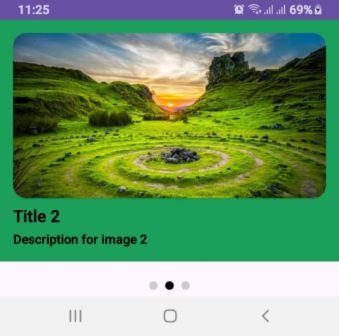
private String[] titles = {"Title 1", "Title 2", "Title 3"};
private String[] descriptions = {
    "Description for image 1",
    "Description for image 2",
    "Description for image 3"
};

These arrays hold the images, titles, and descriptions for the slider. You can easily replace them with your own assets or data from an API.

2. ViewPager2 Configuration

viewPager = findViewById(R.id.viewPager);
sliderAdapter = new LayoutSliderAdapter(images, titles, descriptions);
viewPager.setAdapter(sliderAdapter);
viewPager.setPageTransformer(new BookPageTransformer());

The LayoutSliderAdapter binds data to each page. You can use any animation class (like BookPageTransformer) to create swipe effects.

3. Dot Indicator Setup

private void setupDots(int count) {
    for (int i = 0; i < count; i++) {
        ImageView dot = new ImageView(this);
        dot.setImageResource(R.drawable.dot_unselected);
        ...
        dotLayout.addView(dot);
    }
    highlightDot(0);
}

Dots are added dynamically and respond to user interaction, allowing manual slide navigation.

4. Auto-Slide Functionality

private void setupLayoutAutoSlide() {
    slideRunnable = () -> {
        int nextItem = (viewPager.getCurrentItem() + 1) % images.length;
        viewPager.setCurrentItem(nextItem, true);
        slideHandler.postDelayed(slideRunnable, DELAY_IN_MILLI_SEC);
    };
    slideHandler.postDelayed(slideRunnable, DELAY_IN_MILLI_SEC);
}

This function enables the ViewPager2 to auto-slide every 4 seconds using a Handler and Runnable.

Complete Code Classes

1. BookPageTransformer.java


public class BookPageTransformer implements ViewPager2.PageTransformer {

    @Override
    public void transformPage(@NonNull View page, float position) {
        if (position < -1) { 
            page.setAlpha(0f);
        } else if (position <= 0) { 
            page.setAlpha(1f); 
            page.setTranslationX(0f);
            page.setPivotX(page.getWidth());
            page.setRotationY(-90f * Math.abs(position));
        } else if (position <= 1) { 
            page.setAlpha(1f); 
            page.setTranslationX(0f); 
            page.setPivotX(0f); 
            page.setRotationY(90f * Math.abs(position)); 
        } else { 
            page.setAlpha(0f); 
        }
    }
}

2. LayoutSliderAdapter.java


public class LayoutSliderAdapter extends RecyclerView.Adapter {

    private int[] images;
    private String[] titles;
    private String[] descriptions;
    private int[] colors;

    public LayoutSliderAdapter(int[] images, String[] titles, String[] descriptions) {
        this.images = images;
        this.titles = titles;
        this.descriptions = descriptions;
        colors = new int[]{R.color.col1,R.color.col2,R.color.col3};
    }

    @NonNull
    @Override
    public ViewHolder onCreateViewHolder(@NonNull ViewGroup parent, int viewType) {
        View view = LayoutInflater.from(parent.getContext()).inflate(R.layout.image_slider_item, parent, false);
        return new ViewHolder(view);
    }

    @Override
    public void onBindViewHolder(@NonNull ViewHolder holder, int position) {
        holder.rootItem.setBackgroundColor(ContextCompat.getColor(holder.rootItem.getContext(),colors[position]));
        holder.imageView.setImageResource(images[position]);
        holder.titleTextView.setText(titles[position]);
        holder.descriptionTextView.setText(descriptions[position]);
    }

    @Override
    public int getItemCount() {
        return images.length;
    }

    public static class ViewHolder extends RecyclerView.ViewHolder {
        LinearLayout rootItem;
        ImageView imageView;
        TextView titleTextView;
        TextView descriptionTextView;

        public ViewHolder(@NonNull View itemView) {
            super(itemView);
            rootItem = itemView.findViewById(R.id.rootItem);
            imageView = itemView.findViewById(R.id.imageView);
            titleTextView = itemView.findViewById(R.id.titleTextView);
            descriptionTextView = itemView.findViewById(R.id.descriptionTextView);
        }
    }
}

3. ZoomOutPageTransformer.java


package com.alsaeed.imageslider;

import android.view.View;

import androidx.annotation.NonNull;
import androidx.viewpager2.widget.ViewPager2;

public class ZoomOutPageTransformer implements ViewPager2.PageTransformer {

    private static final float MIN_SCALE = 0.85f;
    private static final float MIN_ALPHA = 0.5f;

    @Override
    public void transformPage(@NonNull View page, float position) {
        if (position < -1) { 
            page.setAlpha(0f);
        } else if (position <= 1) {
            // Scale the page
            float scaleFactor = Math.max(MIN_SCALE, 1 - Math.abs(position));
            float vertMargin = page.getHeight() * (1 - scaleFactor) / 2;
            float horzMargin = page.getWidth() * (1 - scaleFactor) / 2;
            if (position < 0) {
                page.setTranslationX(horzMargin - vertMargin / 2);
            } else {
                page.setTranslationX(-horzMargin + vertMargin / 2);
            }

            // Scale and fade
            page.setScaleX(scaleFactor);
            page.setScaleY(scaleFactor);
            page.setAlpha(MIN_ALPHA + (scaleFactor - MIN_SCALE) / (1 - MIN_SCALE) * (1 - MIN_ALPHA));
        } else {
            page.setAlpha(0f);
        }
    }
}

4. MainActivity.java


public class MainActivity extends AppCompatActivity {

    private ViewPager2 viewPager;
    private LinearLayout dotLayout;
    private final static int DELAY_IN_MILLI_SEC = 4000;

    private int[] images = {
            R.drawable.image_1,
            R.drawable.image_2,
            R.drawable.image_3
    }; // Replace with your images
    private String[] titles = {"Title 1", "Title 2", "Title 3"};
    private String[] descriptions = {
            "Description for image 1",
            "Description for image 2",
            "Description for image 3"
    };

    private LayoutSliderAdapter sliderAdapter;
    private Handler slideHandler;
    private Runnable slideRunnable;

    @Override
    protected void onCreate(Bundle savedInstanceState) {
        super.onCreate(savedInstanceState);
        setContentView(R.layout.activity_main);

        viewPager = findViewById(R.id.viewPager);
        dotLayout = findViewById(R.id.dotSignLayout);

        // Set Adapter for ViewPager2
        sliderAdapter = new LayoutSliderAdapter(images, titles, descriptions);
        viewPager.setAdapter(sliderAdapter);

        // Add PageTransformer for animations
        viewPager.setPageTransformer(new BookPageTransformer());

        // Initialize Dots
        setupDots(images.length);

        // Highlight Dot on Page Change
        viewPager.registerOnPageChangeCallback(new ViewPager2.OnPageChangeCallback() {
            @Override
            public void onPageSelected(int position) {
                highlightDot(position);
            }
        });

        // Auto-Slide Functionality
        slideHandler = new Handler(Looper.getMainLooper());
        setupLayoutAutoSlide();
    }

    private void setupDots(int count) {
        for (int i = 0; i < count; i++) { ImageView dot = new ImageView(this); dot.setImageResource(R.drawable.dot_unselected); // Default dot drawable LinearLayout.LayoutParams params = new LinearLayout.LayoutParams( LinearLayout.LayoutParams.WRAP_CONTENT, LinearLayout.LayoutParams.WRAP_CONTENT ); params.setMargins(8, 0, 8, 0); dot.setLayoutParams(params); final int index = i; dot.setOnClickListener(v -> {
                viewPager.setCurrentItem(index);
                resetAutoSlide();
            });

            dotLayout.addView(dot);
        }

        highlightDot(0);
    }

    private void highlightDot(int position) {
        for (int i = 0; i < dotLayout.getChildCount(); i++) {
            ImageView dotIv = (ImageView) dotLayout.getChildAt(i);
            if (i == position) {
                dotIv.setImageResource(R.drawable.dot_selected);
            } else {
                dotIv.setImageResource(R.drawable.dot_unselected);
            }
        }
    }

    private void setupLayoutAutoSlide() {
        slideRunnable = new Runnable() {
            @Override
            public void run() {
                int nextItem = (viewPager.getCurrentItem() + 1) % images.length;
                viewPager.setCurrentItem(nextItem, true);
                slideHandler.postDelayed(this, DELAY_IN_MILLI_SEC);
            }
        };
        slideHandler.postDelayed(slideRunnable, DELAY_IN_MILLI_SEC);
    }

    private void resetAutoSlide() {
        slideHandler.removeCallbacks(slideRunnable);
        slideHandler.postDelayed(slideRunnable, DELAY_IN_MILLI_SEC);
    }

    @Override
    protected void onDestroy() {
        super.onDestroy();
        slideHandler.removeCallbacks(slideRunnable);
    }
}

5. activity_main.xml

<?xml version="1.0" encoding="utf-8"?>
<androidx.constraintlayout.widget.ConstraintLayout xmlns:android="http://schemas.android.com/apk/res/android"
    xmlns:app="http://schemas.android.com/apk/res-auto"
    xmlns:tools="http://schemas.android.com/tools"
    android:layout_width="match_parent"
    android:layout_height="match_parent"
    tools:context=".MainActivity">

    <!-- ViewPager2 for Image Slider -->
    <androidx.viewpager2.widget.ViewPager2
        android:id="@+id/viewPager"
        android:layout_width="match_parent"
        android:layout_height="0dp"
        app:layout_constraintBottom_toTopOf="@+id/dotSignLayout"
        app:layout_constraintEnd_toEndOf="parent"
        app:layout_constraintStart_toStartOf="parent"
        app:layout_constraintTop_toTopOf="parent" />

    <!-- Dots Indicator -->
    <LinearLayout
        android:id="@+id/dotSignLayout"
        android:layout_width="wrap_content"
        android:layout_height="wrap_content"
        android:layout_marginTop="16dp"
        android:gravity="center"
        android:orientation="horizontal"
        android:padding="8dp"
        app:layout_constraintBottom_toBottomOf="parent"
        app:layout_constraintEnd_toEndOf="parent"
        app:layout_constraintStart_toStartOf="parent"
        app:layout_constraintTop_toBottomOf="@id/viewPager" />

</androidx.constraintlayout.widget.ConstraintLayout>

6. image_slider_item

<LinearLayout xmlns:android="http://schemas.android.com/apk/res/android"
    xmlns:app="http://schemas.android.com/apk/res-auto"
    android:id="@+id/rootItem"
    android:layout_width="match_parent"
    android:layout_height="match_parent"
    android:background="@color/white"
    android:orientation="vertical"
    android:padding="16dp">

    <androidx.cardview.widget.CardView
        android:layout_width="match_parent"
        android:layout_height="200dp"
        app:cardCornerRadius="16dp">

        <ImageView
            android:id="@+id/imageView"
            android:layout_width="match_parent"
            android:layout_height="200dp"
            android:scaleType="centerCrop"
            android:src="@drawable/image_1" />

    </androidx.cardview.widget.CardView>

    <TextView
        android:id="@+id/titleTextView"
        android:layout_width="wrap_content"
        android:layout_height="wrap_content"
        android:layout_marginTop="8dp"
        android:text="Title"
        android:textColor="@color/black"
        android:textSize="18sp" />

    <TextView
        android:id="@+id/descriptionTextView"
        android:layout_width="wrap_content"
        android:layout_height="wrap_content"
        android:layout_marginTop="4dp"
        android:text="Description"
        android:textColor="@color/black"
        android:textSize="14sp" />

</LinearLayout>


Download Source Code

πŸ›  Tips for Customization

  • βœ… Add fade-in or zoom animations for enhanced UX
  • βœ… Replace static arrays with dynamic content from Firebase or REST API
  • βœ… Use MotionLayout for more advanced transitions
  • βœ… Customize the dot shapes and colors for better brand alignment

πŸš€ Final Thoughts

Using ViewPager2 with auto-scroll and dot indicators is a powerful way to deliver interactive, modern UI components in your Android app. Whether for onboarding, promotional banners, or product showcases, this slider structure is flexible, reusable, and production-ready.

Collapsing Toolbar Layout in Android Java

Introduction
In this tutorial, we will implement a Collapsing Toolbar Layout in Android Java using AppBarLayout and NestedScrollView. The CollapsingToolbarLayout provides a smooth collapsing effect when the user scrolls through a NestedScrollView.

Prerequisites

  • Android Studio installed
  • Basic knowledge of XML and Java/Kotlin
  • A working Android project

Step 1: activity_main.xml

Create an activity_main.xml file with the following code:

<?xml version="1.0" encoding="utf-8"?>
<androidx.coordinatorlayout.widget.CoordinatorLayout xmlns:android="http://schemas.android.com/apk/res/android"
    xmlns:app="http://schemas.android.com/apk/res-auto"
    android:layout_width="match_parent"
    android:layout_height="match_parent">

    <com.google.android.material.appbar.AppBarLayout
        android:id="@+id/appBarLayout"
        android:layout_width="match_parent"
        android:layout_height="300dp"
        android:theme="@style/ThemeOverlay.AppCompat.Dark.ActionBar">

        <com.google.android.material.appbar.CollapsingToolbarLayout
            android:id="@+id/collapsingToolbar"
            android:layout_width="match_parent"
            android:layout_height="match_parent"
            app:contentScrim="@color/black"
            app:layout_scrollFlags="scroll|exitUntilCollapsed"
            android:fitsSystemWindows="true"
            app:titleEnabled="true"
            app:expandedTitleTextAppearance="@android:color/transparent">

            <ImageView
                android:id="@+id/headerImage"
                android:layout_width="match_parent"
                android:layout_height="match_parent"
                android:alpha="0.6"
                android:scaleType="centerCrop"
                android:src="@drawable/img"
                app:layout_collapseMode="parallax" />

            <androidx.appcompat.widget.Toolbar
                android:id="@+id/toolbar"
                android:layout_width="match_parent"
                android:layout_height="?attr/actionBarSize"
                android:background="@android:color/transparent"
                app:layout_collapseMode="pin"
                app:popupTheme="@style/ThemeOverlay.AppCompat.Dark" />

        </com.google.android.material.appbar.CollapsingToolbarLayout>

    </com.google.android.material.appbar.AppBarLayout>

    <androidx.core.widget.NestedScrollView
        android:id="@+id/nested_scroll"
        android:layout_width="match_parent"
        android:layout_height="match_parent"
        app:layout_behavior="@string/appbar_scrolling_view_behavior">

        <TextView
            android:id="@+id/text_view"
            android:layout_width="match_parent"
            android:layout_height="wrap_content"
            android:padding="16dp"
            android:text="Your long text here..." />
    </androidx.core.widget.NestedScrollView>

</androidx.coordinatorlayout.widget.CoordinatorLayout>

Step 2: MainActivity.java

Modify MainActivity.java to initialize the toolbar and set the collapsing behavior:


public class MainActivity extends AppCompatActivity {

    @Override
    protected void onCreate(Bundle savedInstanceState) {
        super.onCreate(savedInstanceState);
        setContentView(R.layout.activity_main);

        // Set up Toolbar
        Toolbar toolbar = findViewById(R.id.toolbar);
        toolbar.setTitle("");
        setSupportActionBar(toolbar);
    

        // Collapsing Toolbar Layout
        CollapsingToolbarLayout collapsingToolbarLayout = findViewById(R.id.collapsingToolbar);
        AppBarLayout appBarLayout = findViewById(R.id.appBarLayout);

        collapsingToolbarLayout.setTitle("");


        appBarLayout.addOnOffsetChangedListener(new AppBarLayout.OnOffsetChangedListener() {
            boolean isShown = true;
            int scrollRange = -1;

            @Override
            public void onOffsetChanged(AppBarLayout appBarLayout, int verticalOffset) {
                if (scrollRange == -1) {
                    scrollRange = appBarLayout.getTotalScrollRange();
                }

                if (Math.abs(verticalOffset) >= scrollRange) {
                    // Toolbar is fully collapsed
                    Log.d("Alsaeed", "onOffsetChanged: COLLAPSED");
                    collapsingToolbarLayout.setTitle("Toolbar Title");
                    collapsingToolbarLayout.setCollapsedTitleTextColor(Color.RED);

                    isShown = true;
                } else if (verticalOffset == 0) {
                    // Toolbar is fully expanded
                    Log.d("Alsaeed", "onOffsetChanged: EXPANDED");
                    collapsingToolbarLayout.setTitle("");  // Hide title when expanded
                    isShown = false;
                }
            }
        });
    }

 
}

Step 3: Run the Application

  1. Compile and run the app.
  2. Scroll through the content.
  3. Observe the collapsing effect on the toolbar.


Download Source Code

Conclusion

The CollapsingToolbarLayout provides a visually appealing effect for modern UI designs. It enhances user experience by offering a smooth transition between expanded and collapsed toolbar states. You can further customize it with animations, icons, and additional widgets inside the AppBarLayout.

πŸ“· Barcode Scanner App in Android Java

If you’re searching for a simple yet powerful way to create a Barcode Scanner App in Android Java using Android Studio, you’re in the right place! This tutorial will guide you through building a fully functional barcode and QR code scanner using Google’s Mobile Vision API and Android’s CameraSource class.

This project is ideal for retail apps, inventory management systems, attendance apps, and more.

βœ… Features of This Barcode Scanner App

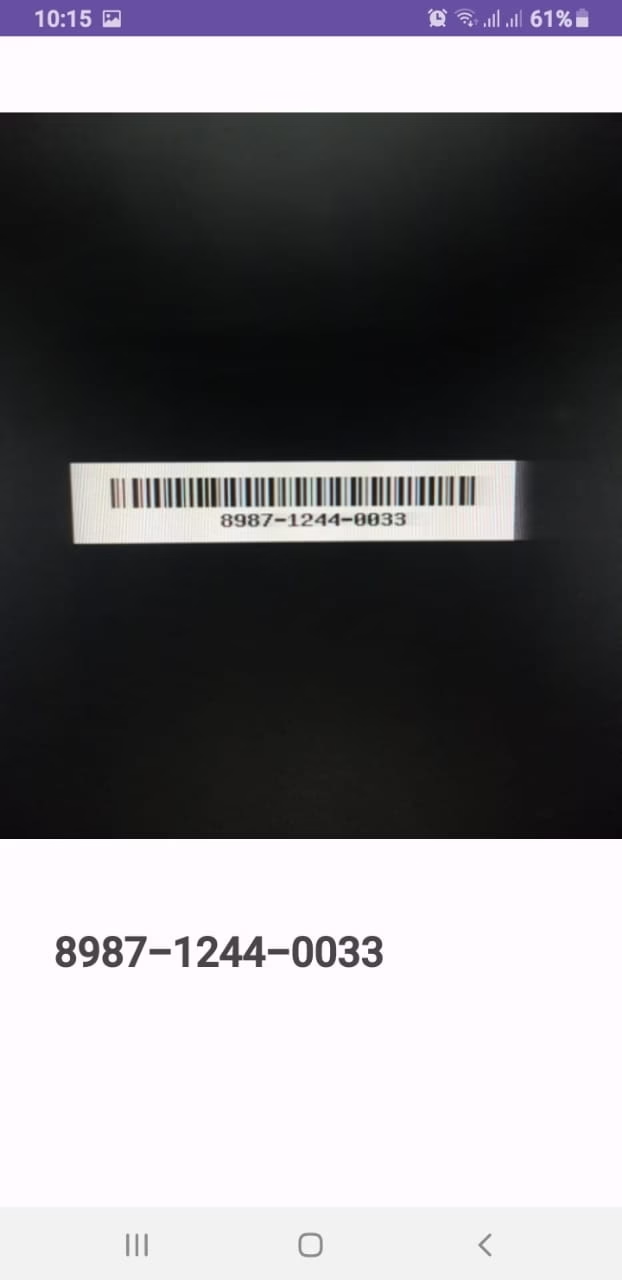
  • Real-time barcode scanning using device camera
  • Supports all barcode formats (QR, UPC, Data Matrix, etc.)
  • Auto-focus enabled for accurate scanning
  • Audio beep tone when a barcode is detected
  • Displays decoded data in a TextView

πŸ› οΈ Tools & Setup Requirements

  • Android Studio
  • Java language
  • Minimum SDK: 21 (Lollipop)
  • Dependencies:
implementation 'com.google.android.gms:play-services-vision:20.1.3'

πŸ“„ Full Java Code for Barcode Scanner (MainActivity.java)

public class MainActivity extends AppCompatActivity {

    private SurfaceView surfaceView;
    private BarcodeDetector barcodeDetector;
    private CameraSource cameraSource;
    private static final int REQUEST_CAMERA_PERMISSION = 201;
    private ToneGenerator toneGen1;
    private TextView barcodeText;
    private String barcodeData;

    @Override
    protected void onCreate(Bundle savedInstanceState) {
        super.onCreate(savedInstanceState);
        setContentView(R.layout.activity_main);

        toneGen1 = new ToneGenerator(AudioManager.STREAM_MUSIC, 100);
        surfaceView = findViewById(R.id.surface_view);
        barcodeText = findViewById(R.id.barcode_text);

        initialiseDetectorsAndSources();
    }

    private void initialiseDetectorsAndSources() {
        barcodeDetector = new BarcodeDetector.Builder(this)
                .setBarcodeFormats(Barcode.ALL_FORMATS)
                .build();

        cameraSource = new CameraSource.Builder(this, barcodeDetector)
                .setRequestedPreviewSize(640, 480)
                .setAutoFocusEnabled(true)
                .build();

        surfaceView.getHolder().addCallback(new SurfaceHolder.Callback() {
            @Override
            public void surfaceCreated(SurfaceHolder holder) {
                try {
                    if (ActivityCompat.checkSelfPermission(MainActivity.this, Manifest.permission.CAMERA) == PackageManager.PERMISSION_GRANTED) {
                        cameraSource.start(surfaceView.getHolder());
                    } else {
                        ActivityCompat.requestPermissions(MainActivity.this,
                                new String[]{Manifest.permission.CAMERA},
                                REQUEST_CAMERA_PERMISSION);
                    }
                } catch (IOException e) {
                    e.printStackTrace();
                }
            }

            @Override
            public void surfaceChanged(@NonNull SurfaceHolder holder, int format, int width, int height) {}

            @Override
            public void surfaceDestroyed(@NonNull SurfaceHolder holder) {
                cameraSource.stop();
            }
        });

        barcodeDetector.setProcessor(new Detector.Processor<Barcode>() {
            @Override
            public void release() {}

            @Override
            public void receiveDetections(@NonNull Detector.Detections<Barcode> detections) {
                final SparseArray<Barcode> barcodes = detections.getDetectedItems();

                if (barcodes.size() != 0) {
                    barcodeText.post(() -> {
                        if (barcodes.valueAt(0).email != null) {
                            barcodeData = barcodes.valueAt(0).email.address;
                        } else {
                            barcodeData = barcodes.valueAt(0).displayValue;
                        }

                        barcodeText.setText(barcodeData);
                        toneGen1.startTone(ToneGenerator.TONE_CDMA_PIP, 150);
                    });
                }
            }
        });
    }

    @Override
    protected void onPause() {
        super.onPause();
        Objects.requireNonNull(getSupportActionBar()).hide();
        cameraSource.release();
    }

    @Override
    protected void onResume() {
        super.onResume();
        Objects.requireNonNull(getSupportActionBar()).hide();
        initialiseDetectorsAndSources();
    }
}

πŸ” Code Explanation

  1. SurfaceView & CameraSource
    – SurfaceView: Renders the live camera preview.
    – CameraSource: Controls the camera feed and feeds frames into the BarcodeDetector.
  2. BarcodeDetector
    – Set to detect all barcode formats using Barcode.ALL_FORMATS.
  3. Permissions
    – Checks for camera permission before starting the camera. Requests it if not already granted.
  4. ToneGenerator
    – A beep sound plays every time a barcode is successfully detected.
  5. Barcode Processing
    – If the barcode contains an email, it’s extracted separately; otherwise, the display value is shown.
    – Data is updated on the UI thread using post() for safe rendering.
  6. Preview Size
    – Set using .setRequestedPreviewSize(640, 480) for balance between quality and performance.

πŸ“ UI Layout (activity_main.xml)

<?xml version="1.0" encoding="utf-8"?>
<androidx.constraintlayout.widget.ConstraintLayout
    xmlns:android="http://schemas.android.com/apk/res/android"
    xmlns:app="http://schemas.android.com/apk/res-auto"
    xmlns:tools="http://schemas.android.com/tools"
    android:layout_width="match_parent"
    android:layout_height="match_parent"
    tools:context=".MainActivity">

    <SurfaceView
        android:id="@+id/surface_view"
        android:layout_width="match_parent"
        android:layout_height="480dp"
        app:layout_constraintTop_toTopOf="parent"
        app:layout_constraintLeft_toLeftOf="parent"
        app:layout_constraintRight_toRightOf="parent" />

    <TextView
        android:id="@+id/barcode_text"
        android:layout_width="match_parent"
        android:layout_height="50dp"
        android:layout_marginLeft="30dp"
        android:layout_marginRight="30dp"
        app:layout_constraintTop_toBottomOf="@id/surface_view"
        android:layout_marginTop="50dp"
        android:text="Barcode Text"
        android:textSize="25sp"
        android:padding="5dp" />

</androidx.constraintlayout.widget.ConstraintLayout>

πŸ”’ Important Permissions (AndroidManifest.xml)

<uses-permission android:name="android.permission.CAMERA" />
<uses-feature android:name="android.hardware.camera" android:required="true" />

βœ… Conclusion

This guide helped you build a real-time barcode scanner app using Java in Android Studio. You learned how to use SurfaceView, CameraSource, BarcodeDetector, and handle permissions, audio tones, and camera lifecycle.

You can expand this app by:

  • Saving scanned data to a database
  • Opening URLs directly from QR codes
  • Switching between front and back camera


Download Source Code