Collapsing Toolbar Layout in Android Java
Introduction
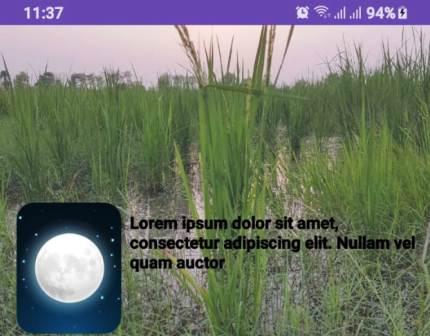
In this tutorial, we will implement a Collapsing Toolbar Layout in Android Java using AppBarLayout and NestedScrollView. The CollapsingToolbarLayout provides a smooth collapsing effect when the user scrolls through a NestedScrollView.
Prerequisites
- Android Studio installed
- Basic knowledge of XML and Java/Kotlin
- A working Android project
Step 1: activity_main.xml
Create an activity_main.xml file with the following code:
Ad loading...
<?xml version="1.0" encoding="utf-8"?>
<androidx.coordinatorlayout.widget.CoordinatorLayout xmlns:android="http://schemas.android.com/apk/res/android"
    xmlns:app="http://schemas.android.com/apk/res-auto"
    android:layout_width="match_parent"
    android:layout_height="match_parent">

    <com.google.android.material.appbar.AppBarLayout
        android:id="@+id/appBarLayout"
        android:layout_width="match_parent"
        android:layout_height="300dp"
        android:theme="@style/ThemeOverlay.AppCompat.Dark.ActionBar">

        <com.google.android.material.appbar.CollapsingToolbarLayout
            android:id="@+id/collapsingToolbar"
            android:layout_width="match_parent"
            android:layout_height="match_parent"
            app:contentScrim="@color/black"
            app:layout_scrollFlags="scroll|exitUntilCollapsed"
            android:fitsSystemWindows="true"
            app:titleEnabled="true"
            app:expandedTitleTextAppearance="@android:color/transparent">

            <ImageView
                android:id="@+id/headerImage"
                android:layout_width="match_parent"
                android:layout_height="match_parent"
                android:alpha="0.6"
                android:scaleType="centerCrop"
                android:src="@drawable/img"
                app:layout_collapseMode="parallax" />

            <androidx.appcompat.widget.Toolbar
                android:id="@+id/toolbar"
                android:layout_width="match_parent"
                android:layout_height="?attr/actionBarSize"
                android:background="@android:color/transparent"
                app:layout_collapseMode="pin"
                app:popupTheme="@style/ThemeOverlay.AppCompat.Dark" />

        </com.google.android.material.appbar.CollapsingToolbarLayout>

    </com.google.android.material.appbar.AppBarLayout>

    <androidx.core.widget.NestedScrollView
        android:id="@+id/nested_scroll"
        android:layout_width="match_parent"
        android:layout_height="match_parent"
        app:layout_behavior="@string/appbar_scrolling_view_behavior">

        <TextView
            android:id="@+id/text_view"
            android:layout_width="match_parent"
            android:layout_height="wrap_content"
            android:padding="16dp"
            android:text="Your long text here..." />
    </androidx.core.widget.NestedScrollView>

</androidx.coordinatorlayout.widget.CoordinatorLayout>
Step 2: MainActivity.java
Modify MainActivity.java to initialize the toolbar and set the collapsing behavior:
public class MainActivity extends AppCompatActivity {

    @Override
    protected void onCreate(Bundle savedInstanceState) {
        super.onCreate(savedInstanceState);
        setContentView(R.layout.activity_main);

        // Set up Toolbar
        Toolbar toolbar = findViewById(R.id.toolbar);
        toolbar.setTitle("");
        setSupportActionBar(toolbar);


        // Collapsing Toolbar Layout
        CollapsingToolbarLayout collapsingToolbarLayout = findViewById(R.id.collapsingToolbar);
        AppBarLayout appBarLayout = findViewById(R.id.appBarLayout);

        collapsingToolbarLayout.setTitle("");


        appBarLayout.addOnOffsetChangedListener(new AppBarLayout.OnOffsetChangedListener() {
            boolean isShown = true;
            int scrollRange = -1;

            @Override
            public void onOffsetChanged(AppBarLayout appBarLayout, int verticalOffset) {
                if (scrollRange == -1) {
                    scrollRange = appBarLayout.getTotalScrollRange();
                }

                if (Math.abs(verticalOffset) >= scrollRange) {
                    // Toolbar is fully collapsed
                    Log.d("Alsaeed", "onOffsetChanged: COLLAPSED");
                    collapsingToolbarLayout.setTitle("Toolbar Title");
                    collapsingToolbarLayout.setCollapsedTitleTextColor(Color.RED);

                    isShown = true;
                } else if (verticalOffset == 0) {
                    // Toolbar is fully expanded
                    Log.d("Alsaeed", "onOffsetChanged: EXPANDED");
                    collapsingToolbarLayout.setTitle("");  // Hide title when expanded
                    isShown = false;
                }
            }
        });
    }


}
Step 3: Run the Application
- Compile and run the app.
- Scroll through the content.
- Observe the collapsing effect on the toolbar.
Ad loading...
Conclusion
The CollapsingToolbarLayout provides a visually appealing effect for modern UI designs. It enhances user experience by offering a smooth transition between expanded and collapsed toolbar states. You can further customize it with animations, icons, and additional widgets inside the AppBarLayout.