Stunning Custom Analog Clock in Android – Java & Kotlin
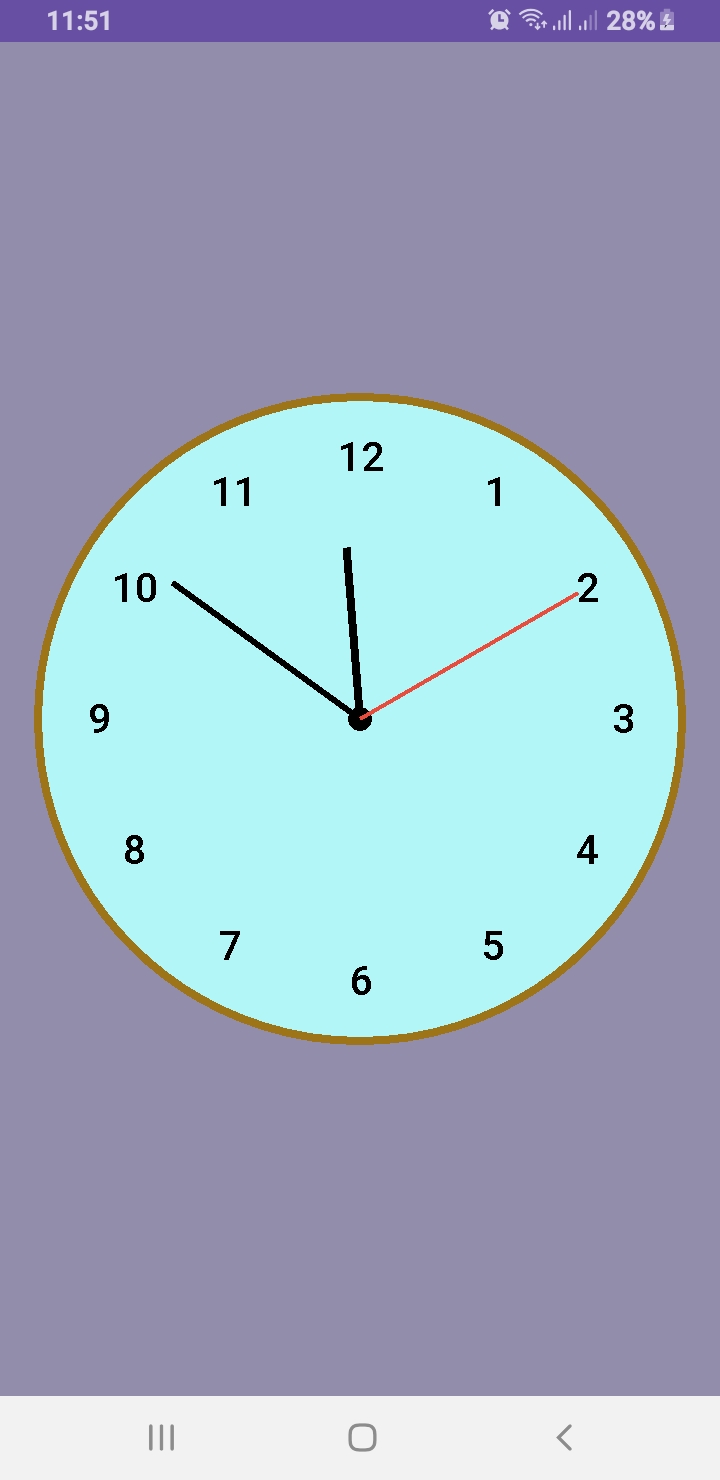
Want to design a custom analog clock in Android? In this post, you’ll learn how to create one using both Java and Kotlin. Whether you’re building a utility app, dashboard UI, or simply improving your UI skills, this is the perfect project to implement a working analog clock in Android.
🎯 What’s Inside This Project?
You’ll get the complete source code for both languages, canvas-based drawing, second-by-second ticking hands, and a beautiful rounded design. Let’s dive into development!
✅ What You’ll Learn
- How to draw a custom analog clock using Canvas
- Java and Kotlin implementations side by side
- Center dot, circular frame, and dynamic ticking hands
- Modern, responsive UI layout for all screen sizes
This article provides two versions: AnalogClockView.java and AnalogClockViewKotlin.kt. You can use either based on your language preference.
📄 XML Layout
To use the custom clock in your activity, add this to your activity_main.xml:
<?xml version="1.0" encoding="utf-8"?>
<RelativeLayout xmlns:android="http://schemas.android.com/apk/res/android"
    xmlns:tools="http://schemas.android.com/tools"
    android:layout_width="match_parent"
    android:layout_height="match_parent"
    tools:context=".MainActivity">

    <www.alsaeeddev.clock.AnalogClockView
        android:id="@+id/analogClock"
        android:layout_width="match_parent"
        android:layout_height="match_parent"
        android:layout_centerInParent="true" />

</RelativeLayout>
📦 Java Code: AnalogClockView.java
package www.alsaeeddev.clock;
import android.content.Context;
import android.graphics.Canvas;
import android.graphics.Color;
import android.graphics.Paint;
import android.graphics.Rect;
import android.util.AttributeSet;
import android.view.View;

import java.util.Calendar;

public class AnalogClockView extends View {

    private Paint paint;
    private int width, height, radius;
    private int padding = 0;
    private int numeralSpacing = 30;
    private int handTruncation, hourHandTruncation;
    private final int[] numbers = {1,2,3,4,5,6,7,8,9,10,11,12};
    private Rect textBounds = new Rect();

    public AnalogClockView(Context context) {
        super(context);
        init();
    }

    public AnalogClockView(Context context, AttributeSet attrs) {
        super(context, attrs);
        init();
    }

    private void init() {
        paint = new Paint();
    }

    @Override
    protected void onDraw(Canvas canvas) {
        width = getWidth();
        height = getHeight();
        int min = Math.min(width, height);
        radius = min / 2 - 40;

        canvas.drawColor(Color.parseColor("#928dab")); // Background

        // Draw clock background
        paint.reset();
        paint.setColor(Color.parseColor("#b3f6f8"));
        paint.setStyle(Paint.Style.FILL);
        canvas.drawCircle((float) width /2, (float) height /2, radius + 30, paint);

        paint.setStyle(Paint.Style.STROKE);
        paint.setColor(Color.parseColor("#9e7419"));
        paint.setStrokeWidth(8f);
        canvas.drawCircle((float) width /2, (float) height /2, radius + 30, paint);

        // Draw center dot
        paint.setStyle(Paint.Style.FILL);
        paint.setColor(Color.BLACK);
        canvas.drawCircle((float) width /2, (float) height /2, 12, paint);

        // Draw clock numbers
        paint.setTextSize(40);
        paint.setColor(Color.BLACK);
        for (int number : numbers) {
            String tmp = String.valueOf(number);
            paint.getTextBounds(tmp, 0, tmp.length(), textBounds);
            double angle = Math.PI / 6 * (number - 3);
            int x = (int)((double) width /2 + Math.cos(angle) * (radius - numeralSpacing) - (double) textBounds.width() /2);
            int y = (int)((double) height /2 + Math.sin(angle) * (radius - numeralSpacing) + (double) textBounds.height() /2);
            canvas.drawText(tmp, x, y, paint);
        }

        // Get time
        Calendar calendar = Calendar.getInstance();
        int hour = calendar.get(Calendar.HOUR);
        int minute = calendar.get(Calendar.MINUTE);
        int second = calendar.get(Calendar.SECOND);

        drawHand(canvas, (hour + minute / 60.0) * 5f, true, false); // Hour hand
        drawHand(canvas, minute, false, false);                     // Minute hand
        drawHand(canvas, second, false, true);                      // Second hand

        postInvalidateDelayed(1000);
        invalidate();
    }


// draw the clock hands
    private void drawHand(Canvas canvas, double loc, boolean isHour, boolean isSecond) {
        double angle = Math.PI * loc / 30 - Math.PI / 2;
        int handRadius = isHour ? radius - 120 : radius - 60;
        if (isSecond) handRadius = radius - 40;

        paint.setColor(isSecond ? Color.parseColor("#e74c3c") : Color.BLACK);
        paint.setStrokeWidth(isSecond ? 4f : isHour ? 8f : 6f);
        canvas.drawLine((float) width /2, (float) height /2,
                (float)((double) width /2 + Math.cos(angle) * handRadius),
                (float)((double) height /2 + Math.sin(angle) * handRadius),
                paint);
    }
}
🧑💻 Kotlin Code: AnalogClockViewKotlin.kt
package www.alsaeeddev.clock

import android.content.Context
import android.graphics.Canvas
import android.graphics.Color
import android.graphics.Paint
import android.graphics.Rect
import android.util.AttributeSet
import android.view.View
import java.util.Calendar
import kotlin.math.cos
import kotlin.math.min
import kotlin.math.sin

class AnalogClockViewKotlin @JvmOverloads constructor(
    context: Context, attrs: AttributeSet? = null
) : View(context, attrs) {

    private val paint = Paint()
    private val numbers = (1..12).toList()
    private val textBounds = Rect()
    private var widthCenter = 0
    private var heightCenter = 0
    private var radius = 0

    init {
        paint.isAntiAlias = true
    }

    override fun onDraw(canvas: Canvas) {
        super.onDraw(canvas)

        widthCenter = width / 2
        heightCenter = height / 2
        radius = min(widthCenter, heightCenter) - 60

        drawBackground(canvas)
        drawCenterDot(canvas)
        drawNumbers(canvas)
        drawHands(canvas)

        postInvalidateDelayed(1000)
        invalidate()
    }

    private fun drawBackground(canvas: Canvas) {
        paint.reset()
        paint.isAntiAlias = true

        // Clock circle fill
        paint.color = Color.parseColor("#b3f6f8")
        paint.style = Paint.Style.FILL
        canvas.drawCircle(widthCenter.toFloat(), heightCenter.toFloat(), radius + 30f, paint)

        // Clock border
        paint.style = Paint.Style.STROKE
        paint.strokeWidth = 8f
        paint.color = Color.parseColor("#9e7419")
        canvas.drawCircle(widthCenter.toFloat(), heightCenter.toFloat(), radius + 30f, paint)
    }

    private fun drawCenterDot(canvas: Canvas) {
        paint.style = Paint.Style.FILL
        paint.color = Color.BLACK
        canvas.drawCircle(widthCenter.toFloat(), heightCenter.toFloat(), 12f, paint)
    }

    private fun drawNumbers(canvas: Canvas) {
        paint.textSize = 40f
        paint.color = Color.BLACK
        for (number in numbers) {
            val numStr = number.toString()
            paint.getTextBounds(numStr, 0, numStr.length, textBounds)
            val angle = Math.PI / 6 * (number - 3)
            val x = (widthCenter + cos(angle) * (radius - 30) - textBounds.width() / 2).toFloat()
            val y = (heightCenter + sin(angle) * (radius - 30) + textBounds.height() / 2).toFloat()
            canvas.drawText(numStr, x, y, paint)
        }
    }

    private fun drawHands(canvas: Canvas) {
        val calendar = Calendar.getInstance()
        val hour = calendar.get(Calendar.HOUR)
        val minute = calendar.get(Calendar.MINUTE)
        val second = calendar.get(Calendar.SECOND)

        drawHand(canvas, (hour + minute / 60f) * 5, isHour = true, isSecond = false)
        drawHand(canvas, minute.toFloat(), isHour = false, isSecond = false)
        drawHand(canvas, second.toFloat(), isHour = false, isSecond = true)
    }

    private fun drawHand(canvas: Canvas, loc: Float, isHour: Boolean, isSecond: Boolean) {
        val angle = Math.PI * loc / 30 - Math.PI / 2
        val handLength = when {
            isHour -> radius - 120
            isSecond -> radius - 30
            else -> radius - 60
        }

        paint.color = if (isSecond) Color.parseColor("#e74c3c") else Color.BLACK
        paint.strokeWidth = when {
            isHour -> 8f
            isSecond -> 4f
            else -> 6f
        }
        paint.style = Paint.Style.STROKE

        canvas.drawLine(
            widthCenter.toFloat(), heightCenter.toFloat(),
            (widthCenter + cos(angle) * handLength).toFloat(),
            (heightCenter + sin(angle) * handLength).toFloat(),
            paint
        )
    }
}
Output
✅ Conclusion
Creating a custom analog clock in Android is a great way to explore Canvas drawing, custom views, and elegant UI development. Whether you choose Java or Kotlin, the outcome is a clean and dynamic clock component ready for your next project.
We used the Paint class extensively to draw shapes and text on the canvas. To learn more about its capabilities, see the official documentation here:
🔗 Android Developers
Don’t forget to share and follow Al Saeed for more hands-on Android tutorials.